Excel Lifehacks That "Experts" Don't Know About
A veteran finance colleague spent an hour struggling in Excel despite 20 years of experience. These built-in features—from Flash Fill to the Camera Tool—have existed for years but remain unknown to most power users.
P.S. Share your favorite Excel tricks in the comments!
I watched my experienced finance colleague spend a whole hour fiddling in Excel. He's an Excel guru who's been working with it for 20 years. But when I saw how he was typing formulas, I couldn't help myself and showed him a couple of simple tricks that blew his mind.
This was a problem of not knowing—not knowing about features that have been sitting in Excel for years, saving hours of work, but that simply nobody talks about.
So I'm writing this article to collect the best lifehacks and save precious seconds of your life.
The Competence Paradox
Here's what's surprising: the longer someone works in Excel, the less likely they are to learn new features. If your method has worked for 20 years, why change it? You're an expert. Your formulas are complex but reliable.
The problem is that over those 20 years, Excel has changed radically. Functions that required nested IFs spanning three screens can now be solved in a single line. Tasks that took an hour now take a minute.
But Microsoft doesn't send out notifications about new features. YouTube is full of tutorials, but you don't search for a solution to a problem you've already solved your own way. But you'll learn about them in this article, which you've stumbled upon by accident.
Most Excel experts work less efficiently than interns who were properly trained could.
Here, test yourself:
- Do you know what Ctrl + E does?
- Do you use F4 when writing formulas?
- Have you heard of the Camera Tool?
If even one answer is "no"—you're leaving hours of productivity on the table every week.
Flash Fill: Machine Learning Nobody Knows About
Imagine the task: you have 5,000 rows with emails like "ivan.petrov@company.ru" and you need to extract names and companies separately.
The traditional approach (used by 95% of people):
=LEFT(A2,FIND(".",A2)-1)For the last name—another formula. For the domain—a third one. If the structure changes slightly (someone has a middle name, someone has a hyphen in their last name)—you redo everything.
The approach of someone who knows about Flash Fill:
- In the adjacent cell, type "ivan" manually (for the first email)
- Press Ctrl + E
- Done.
Excel instantly understands the pattern and fills all 5,000 rows.
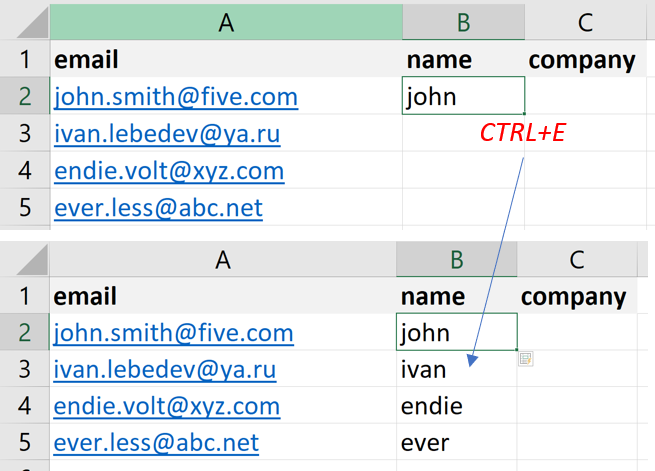
This isn't a formula. It's machine learning built into Excel since 2013. But if you don't know about Ctrl + E, this technology simply doesn't exist for you.
F4: Two Seconds That Add Up to Weeks
I watch people type a formula with an absolute reference:
=A1*$B$1They type character by character: equals, A, 1, asterisk, Shift+4, B, Shift+4, 1.
"Do you know about F4?"
The F4 key while editing a formula toggles the reference type:
A1 → $A$1 → A$1 → $A1 → back to A1
One keystroke instead of four characters. Fast and convenient. Sounds trivial?
But it's not about the keystrokes. It's about the fact that when you type manually, you sometimes make mistakes. You forget a dollar sign. You put it in the wrong place. The formula copies incorrectly, the results are wrong, and you spend tens of minutes hunting for the error.
F4 eliminates this entire class of problems. With one button.
Camera Tool: The Secret Weapon for Dashboards
How many times have you created a "nice report" in Excel by copying tables and charts from different sheets? And how many times, when data updated, did you have to redo everything?
There's a feature that solves this at its root: the Camera Tool.
This isn't a screenshot. It's a live link to the source data. You "photograph" any range of cells, and this photograph:
- Updates automatically when data changes
- Scales like an image
- Can be placed anywhere
- Overlays on top of other elements
For dashboards, this is revolutionary. Instead of complex formulas and links between sheets, you simply assemble "photographs" of the tables you need on one sheet like a constructor set.
The problem: Camera Tool isn't on the ribbon and nobody knows about it.
To find it, you need to:
- Know that it exists (you now know)
- Go to File → Options → Customize Ribbon
- In the dropdown, select "All Commands"
- Find "Camera" in the alphabetical list
- Add it to the Quick Access Toolbar
It's easier to just Google it and watch a one-minute video :-)
Your Minimum Survival Kit
Here are functions you should start using right now. Not tomorrow. Now.
1. Alt + =
Instant sum of selected cells. Forget about typing =SUM(.
2. Ctrl + T
Converts a data range into a "smart table" with auto-filters, formatting, and structured references. After this, instead of =A2*B2 you write =[@Price]*[@Quantity]. Readable. Clear. Doesn't break when inserting rows.
3. Ctrl + E
Flash Fill. Show the pattern—Excel continues it.
4. F4
Toggle reference types in formulas.
5. Alt + ;
Select only visible cells. A lifesaver when copying filtered data (otherwise hidden rows get copied too).
6. Double-click the fill handle
Instead of dragging a formula down across 5,000 rows, double-click the small square in the bottom-right corner of the cell. Excel automatically fills down to the end of the data.
7. Ctrl + Arrow
Instantly jump to the edge of a data block. Navigate large tables without scrolling.
8. Ctrl + F3
Name Manager. Instead of using A1:A100 in all your formulas, name the range "Sales" and use that. Formulas become readable: =SUM(Sales) instead of =SUM(A1:A100).
Each of these features saves seconds. But seconds add up to minutes, minutes to hours, hours to days.
Why You Won't Change Your Habits
You'll read about Ctrl + E, think "I should remember that," close the tab, and continue working the way you always have.
Because changing habits requires effort. And your current way of working, however inefficient it may be, works.
This is called technical debt on a personal level. You accumulate inefficient practices, and over time the cost of fixing them seems higher than the benefit.
But here's the thing: that cost grows. Every day you lose a little more time. Every week the gap between you and those who work efficiently widens.
At some point, a young analyst will arrive who knows about dynamic arrays and will do in an hour what takes you a day.
What to Do Right Now
Don't try to learn everything at once. Start with one feature. Today.
Challenge: Open Excel right now. Find a formula with an absolute reference. Click on the reference in the formula bar. Press F4. Watch it change.
That's it. Nothing more needed.
Tomorrow, try Flash Fill.
The day after—Ctrl + T on a data range.
In a week, these features will become automatic. In a month, you'll wonder how you ever worked without them.
Share in the comments: what cool tricks do you use in Excel? Let's collect the best lifehacks in one place.
If after reading this article you opened Excel and pressed F4 in a formula—my job is done. If you tried Flash Fill—I'm happy. If you opened Name Manager (Ctrl + F3) and named a range "Sales" instead of using A1:A100—I haven't lived this day in vain :-)
Update from the Comments
F12 — Classic "Save As…" dialog box (without backstage)
Tab — Autocomplete function name while typing
Ctrl + ; (semicolon) — Insert current date
Ctrl + Shift + ; — Insert current time
F2 — Toggle arrow key behavior: move between characters in a formula vs. move between cells on the sheet. A lifesaver when editing complex formulas without a mouse.
F9 — Calculate a selected portion of a formula right during input (for debugging)
Ctrl + [ and Ctrl + ] — Jump to precedent/dependent cells (even in other workbooks)