Installing Windows via CMD
A guide to installing modern Windows versions entirely through the command line — faster, offline, and free from forced services and telemetry.
This article describes an alternative method for installing modern versions of Windows that is faster, does not require an internet connection, and does not impose any services on you.
The entire process consists of the following stages:
- Booting from installation media
- Manual disk partitioning
- Applying the WIM image
- Installing the bootloader
- Modifying the registry
- First reboot
- Launching system deployment
- Creating a user
- Additional registry work and two more reboots
- Installation complete
Stage 1: System Installation
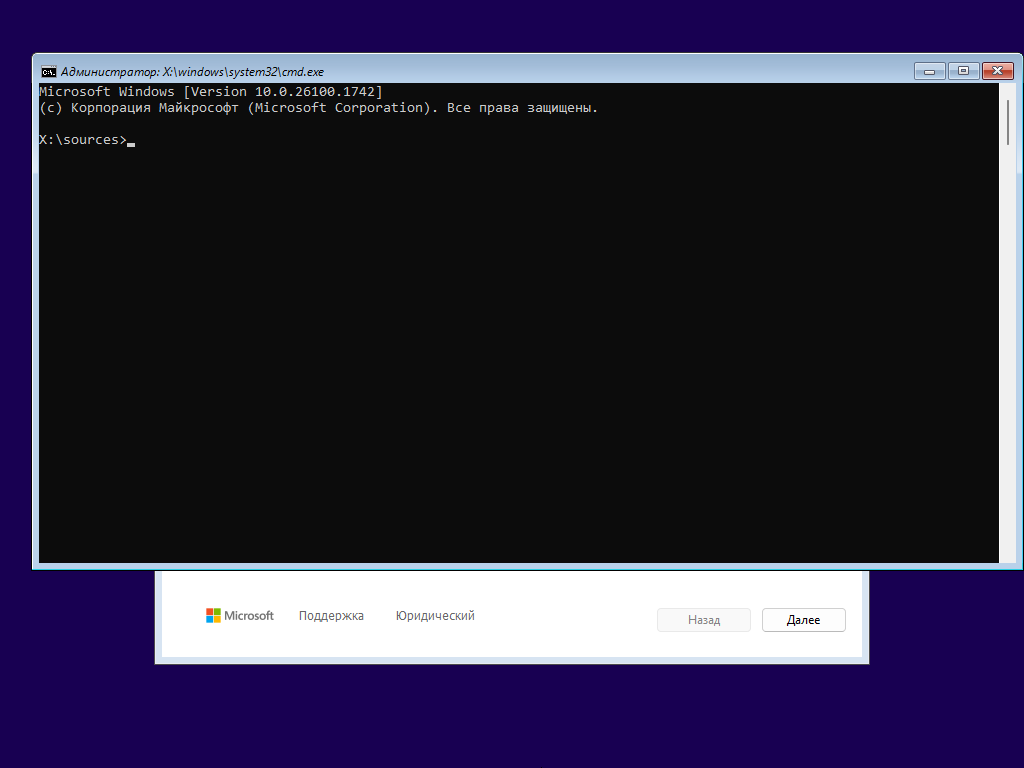
Opening the Command Prompt
Press the key combination Shift+F10 to open CMD during the installation process.
Disk Partitioning
You need to create two partitions:
- EFI partition: 512 MB, formatted as FAT32, assigned drive letter W
- Main partition: all remaining space, NTFS, assigned drive letter C
Diskpart commands:
select disk 0
convert gpt
create partition efi size=512
format quick fs=fat32
assign letter W
create partition primary
format quick
assign letter C
Applying the WIM Image
First, determine the available editions:
dism /get-wiminfo /wimfile:D:\sources\install.wim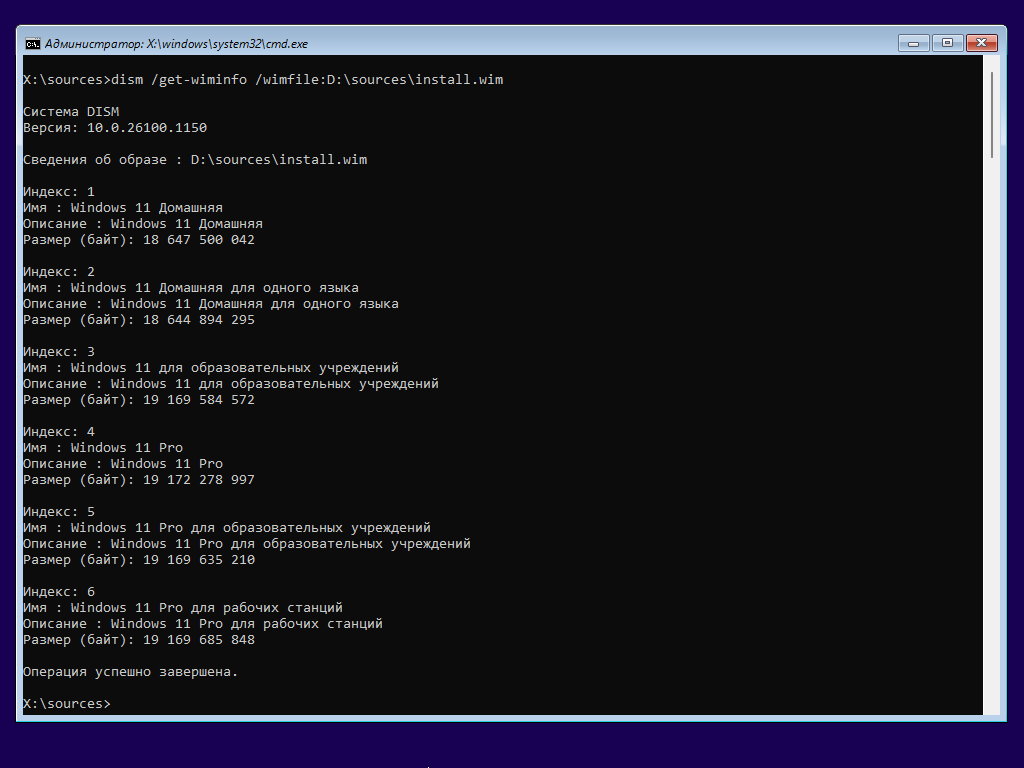
Then apply the image:
dism /apply-image /imagefile:D:\sources\install.wim /index:4 /applydir:C:\Installing the Bootloader
bcdboot C:\Windows /s W:Registry Configuration
reg load HKLM\mount_SYSTEM C:\Windows\System32\config\SYSTEM
reg add HKLM\mount_SYSTEM\Setup /v CmdLine /d "cmd.exe" /t REG_SZ /f
Parameters of the reg add command:
/v— registry value name/d— data to place in the value/t— data type (REG_SZ for strings, REG_DWORD for numbers)/f— force change without confirmation prompt
Reboot:
wpeutil rebootStage 2: First Reboot
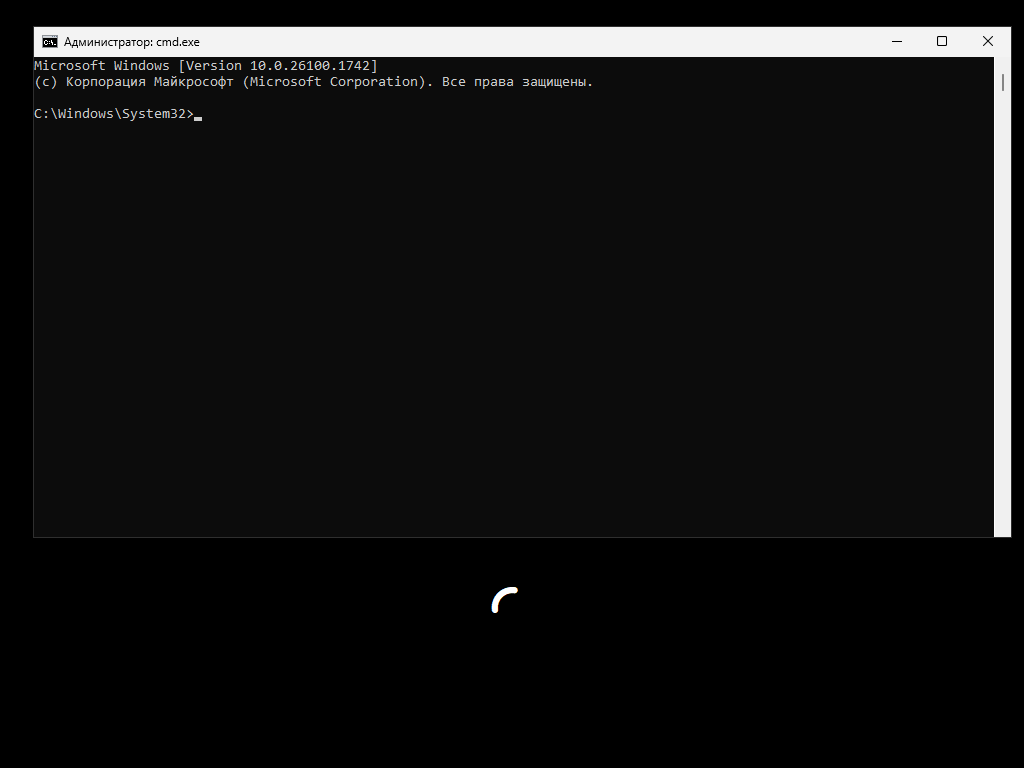
After rebooting, the system enters "setup mode" where only CMD is launched.
System Deployment
oobe\windeploy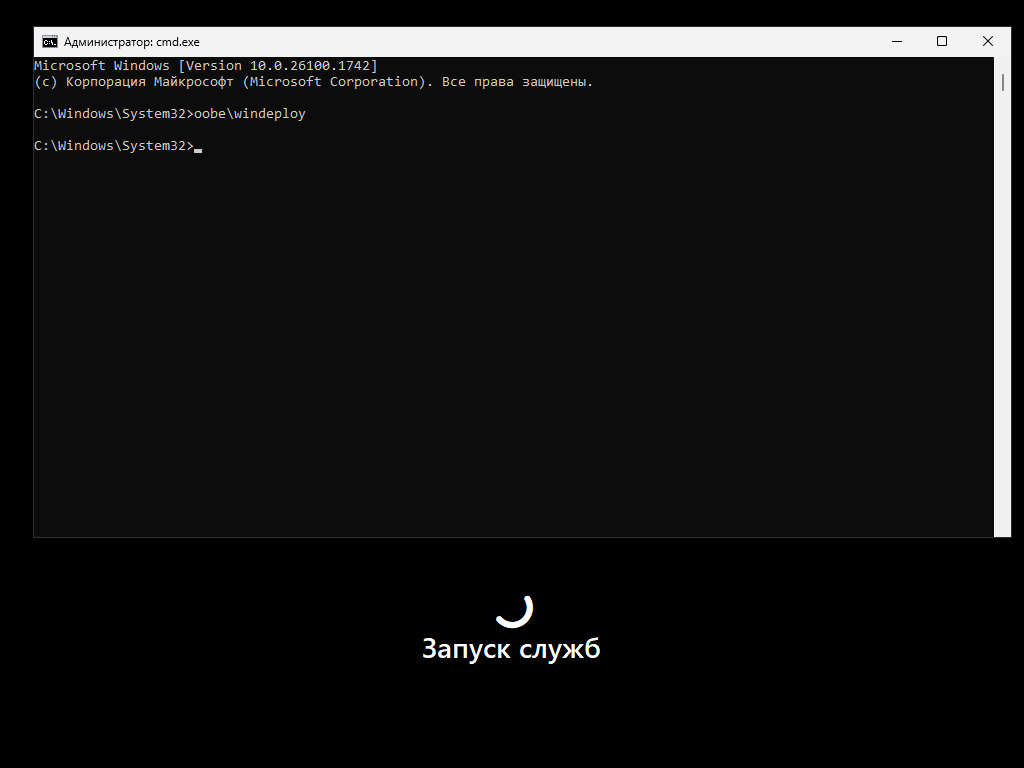
Creating a User
net user /add uzver $tr0ng_p@$$
net localgroup Users /add uzver
net localgroup Administrators /add uzver
Disabling OOBE
move wwahost.exe wwahost.exe.bakWaiting for windeploy to Finish
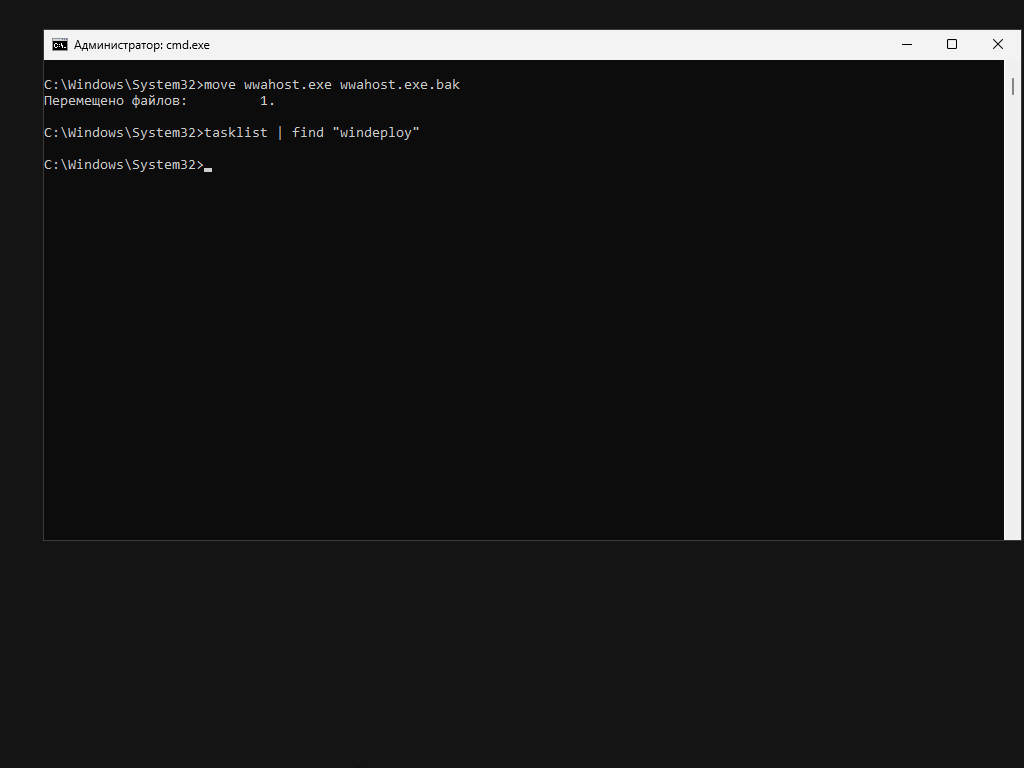
Check status:
tasklist | find "windeploy"Final Registry Configuration
reg query HKLM\SYSTEM\Setup /t REG_DWORDSet all DWORD values to 0 (except SetupType):
reg add HKLM\System\Setup /v <value> /d 0 /t REG_DWORD /fRe-set cmd.exe as the installer:
reg add HKLM\System\Setup /v CmdLine /d "cmd.exe"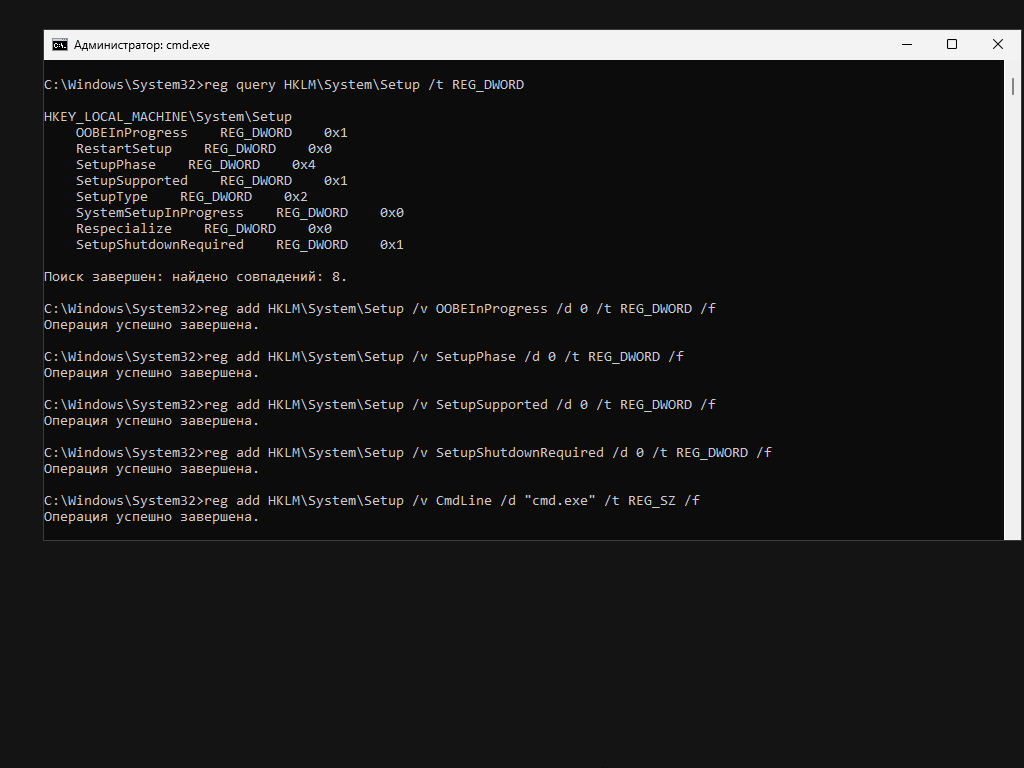
Reboot:
shutdown -r -t 0Stage 3: Second Reboot
After the second reboot, run one more restart:
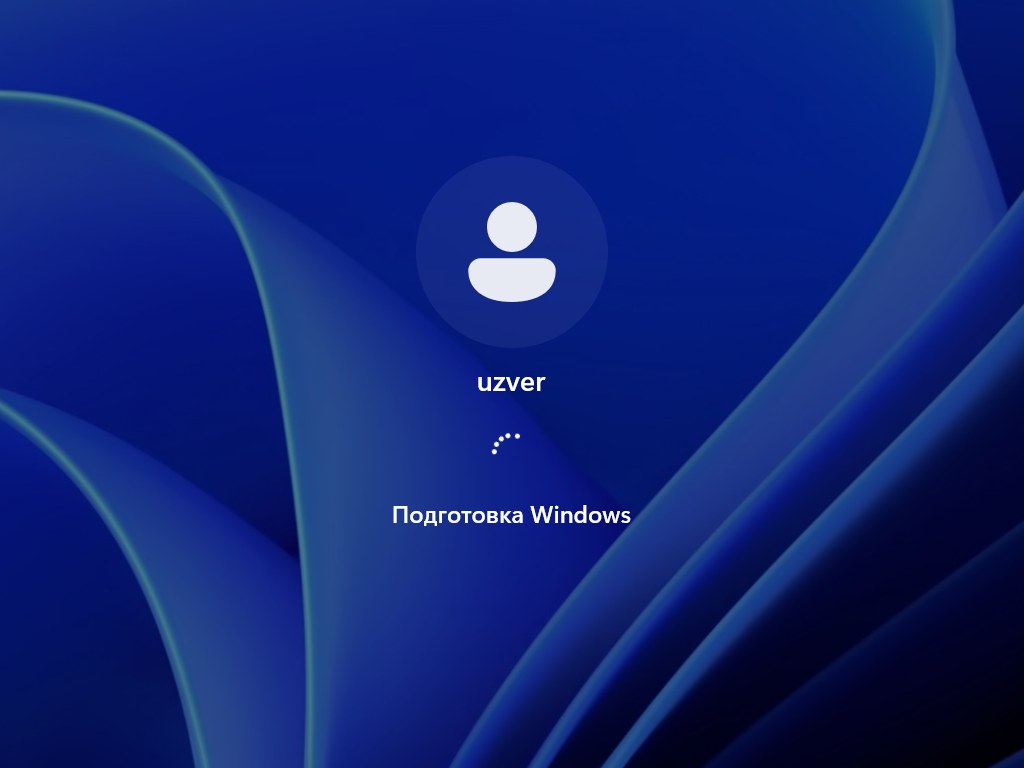
shutdown -r -t 0After this, the system boots with the graphical login interface.
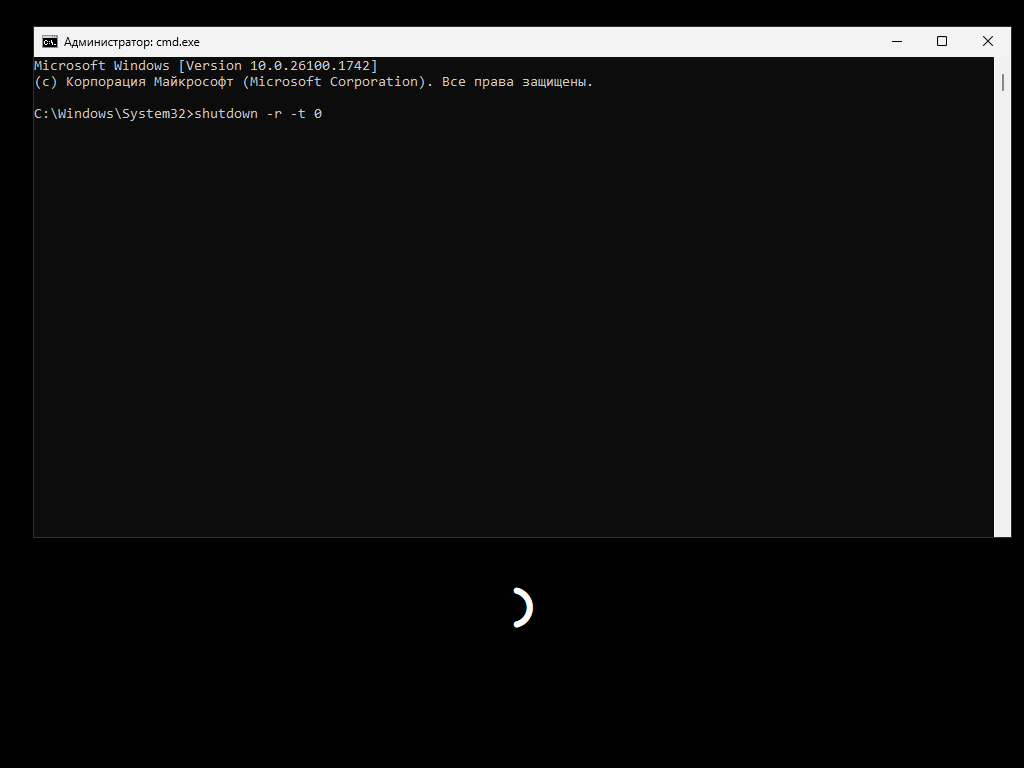
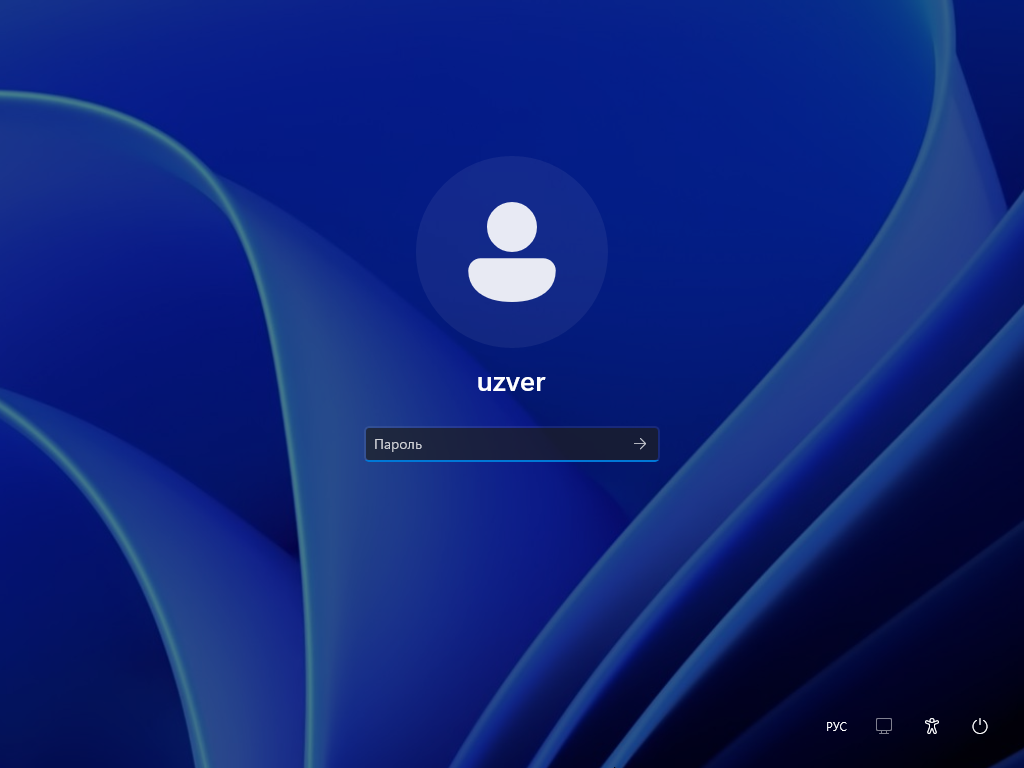
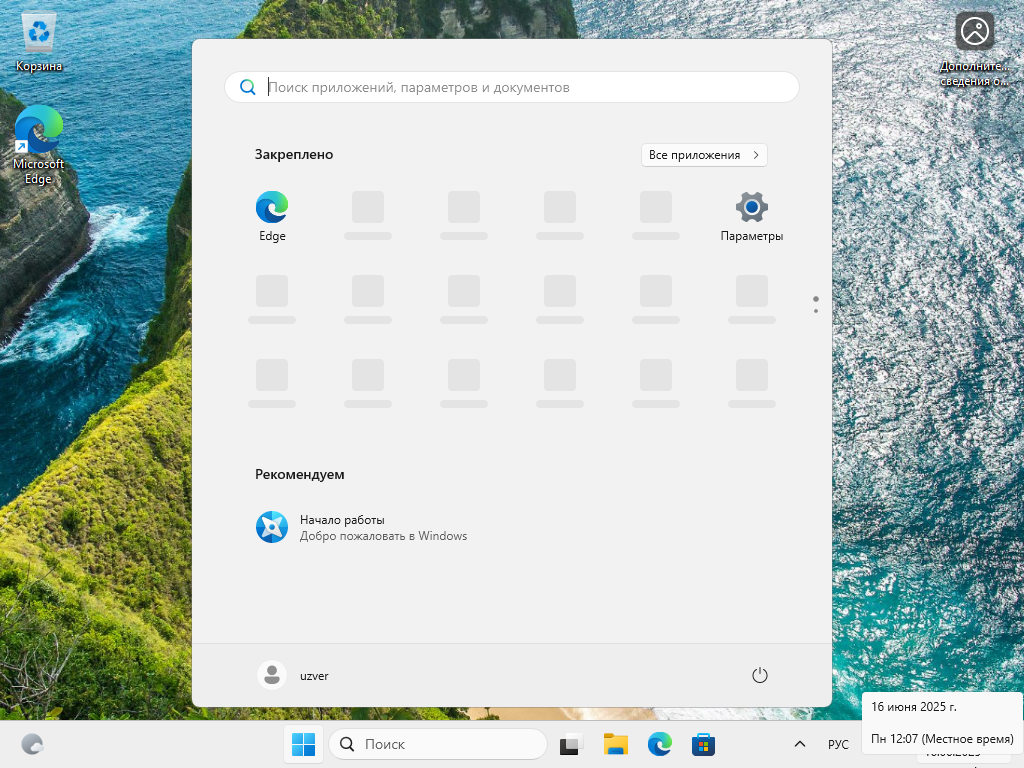
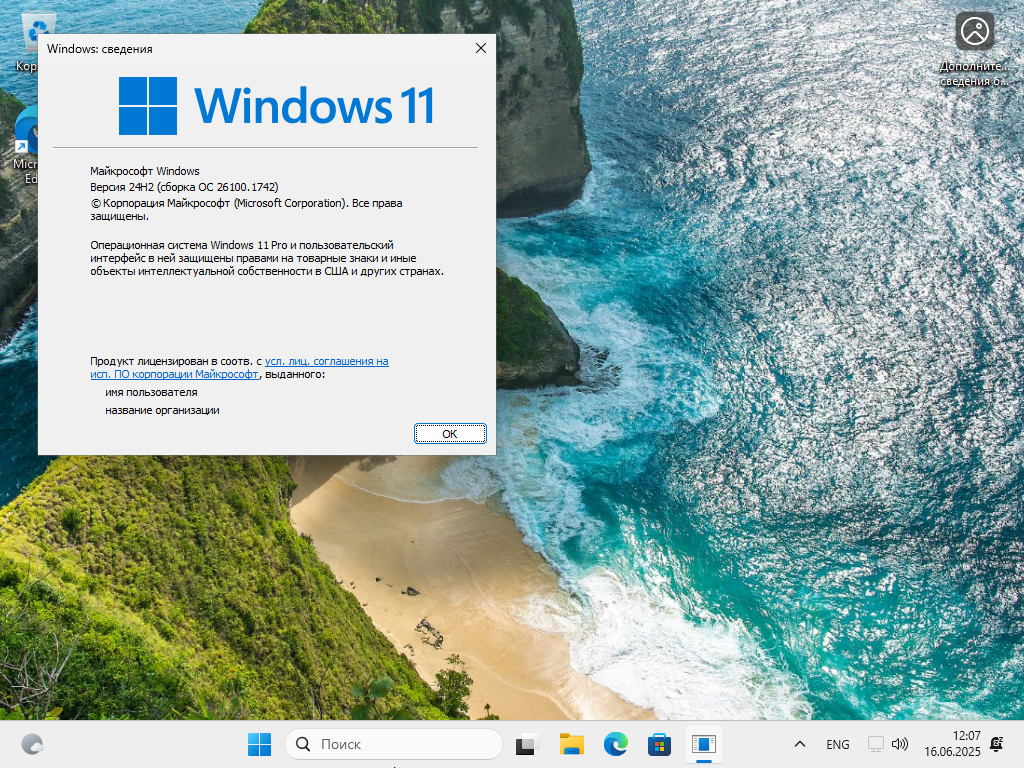
Screenshots of the Installed System
Conclusion
This method requires even fewer actions and less time than a normal installation and can be automated through batch files without the need to learn the unattend.xml syntax.
FAQ
What is this article about in one sentence?
This article explains the core idea in practical terms and focuses on what you can apply in real work.
Who is this article for?
It is written for engineers, technical leaders, and curious readers who want a clear, implementation-focused explanation.
What should I read next?
Use the related articles below to continue with closely connected topics and concrete examples.