Simple Textured Background in 5 Seconds
A quick Photoshop technique to create elegant textured backgrounds using noise layers, blend modes, and color tinting — in just a few simple steps.

On a gray background, create a new layer with noise, set the blend mode to Screen.

Copy this layer, invert it (Ctrl+I), shift it 1 pixel down, and set the blend mode to Multiply.
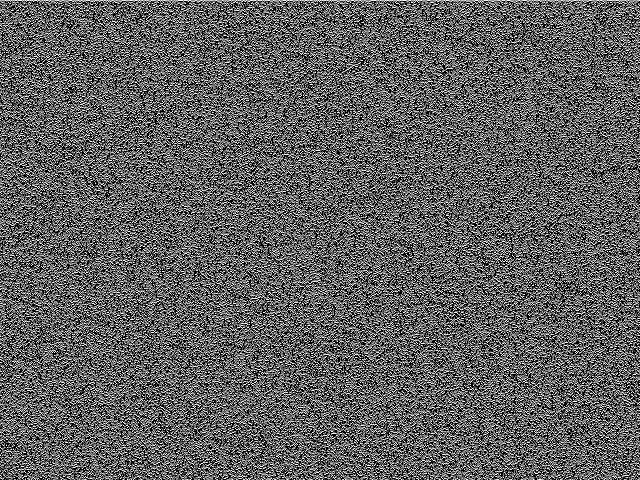
Reduce the opacity of both layers to 20%.

Tint it (a color layer in Soft Light mode) — you can apply it twice.
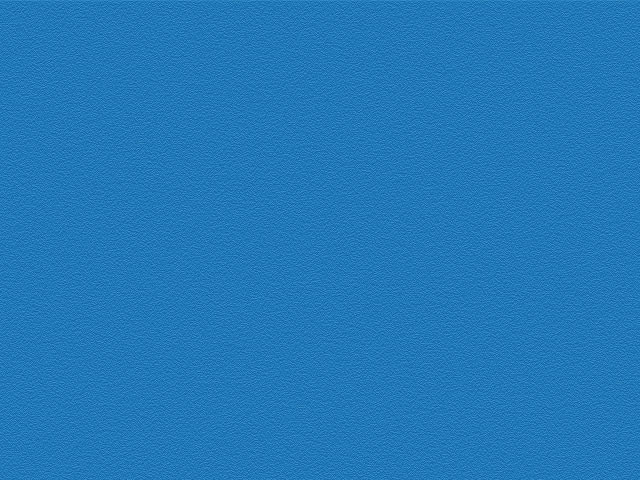
Add lighting as needed (layers in Soft Light mode), insert icons, buttons, text, or whatever you have in your design.
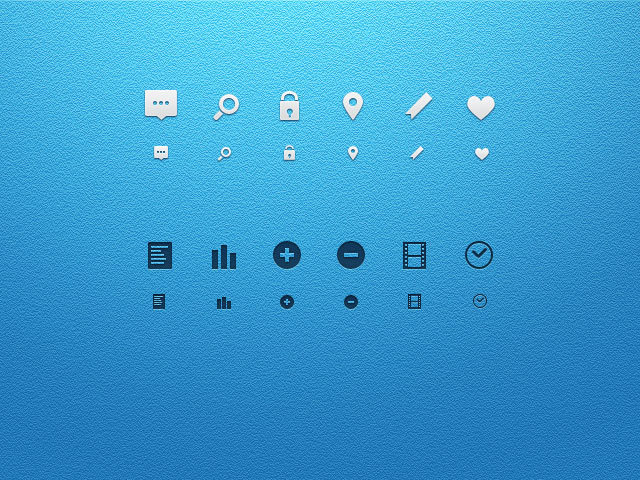
Idea from: designmoo.com/resources/simple-icons
Icons from: designmoo.com/resources/glyphs-psd
Addition: On the second step, do Edit → Define Pattern, and then in your future projects use Pattern Overlay in Luminosity mode.