Who Is Interfering with Your Wi-Fi?
A comprehensive guide to diagnosing and fixing Wi-Fi problems, covering signal physics, channel interference, hardware bottlenecks, mesh systems, and traffic management with QoS tools like fq_codel and CAKE.
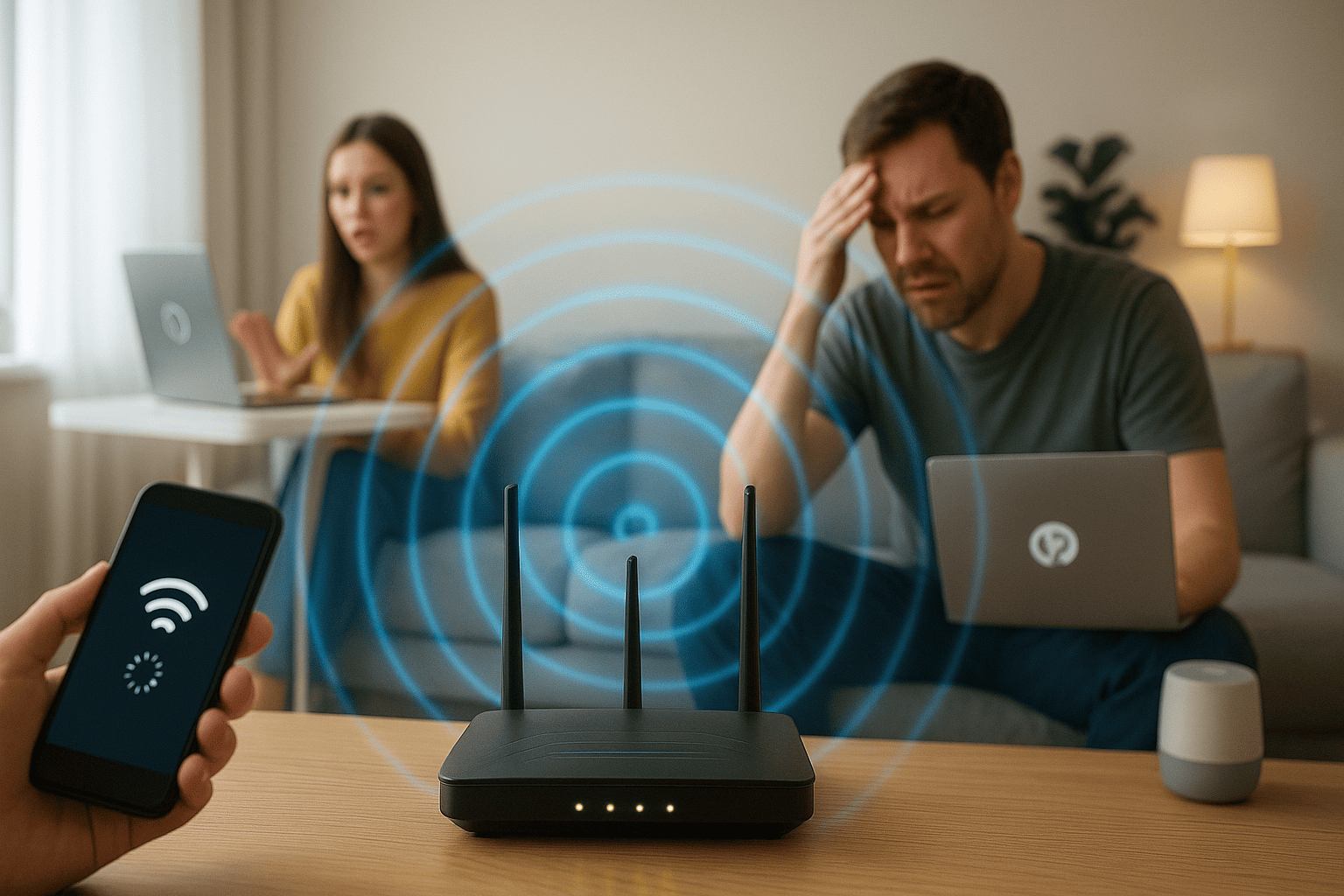
Someone in the family complains about slow internet in the far room, someone else can't pass a level in an online game because of lag, and for someone Wi-Fi exists but doesn't work. A wireless network is invisible right up until something goes wrong — and that's when all the hidden weaknesses of your home or office reveal themselves: an old router, congested frequencies, unfortunate walls, or a bunch of "smart" appliances on the same band.
How Wi-Fi Works and What Types Exist
First, about generations. Right now, the baseline minimum for a home looks like 802.11ac (Wi-Fi 5), which can theoretically transmit data at speeds up to 3.5 Gbps, although a more realistic figure is over 1 Gbps using MU-MIMO technology.
A step above is Wi-Fi 6. It was designed for dense apartments and offices. It operates on two bands simultaneously (2.4 and 5 GHz) and hangs less. It's a solid middle-ground option that handles multi-gigabit streams and multiple clients. OFDMA technology for slicing the channel between users reduces latency (especially noticeable in apartment buildings). Moving to Wi-Fi 6E quadruples the volume of radio spectrum, allowing 14 additional 80 MHz channels and 7 additional 160 MHz channels. Overall, Wi-Fi 6E has the same maximum potential speed as Wi-Fi 6 (9.6 Gbps), but in reality it offers greater speed and wider range.
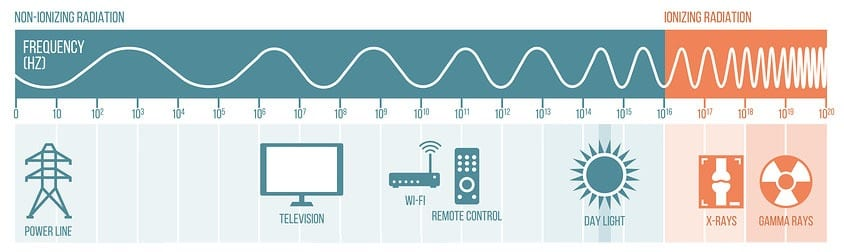
And the luxurious maximum on the horizon is Wi-Fi 7, nearly 5 times faster than Wi-Fi 6: maximum potential data transfer speed is 46 Gbps, with an approximate real-world speed of 6 Gbps. Use cases include multi-user AR/VR, immersive 3D training, esports gaming, hybrid work, IIoT and automotive, but for now it's the domain of flagships and enterprise.
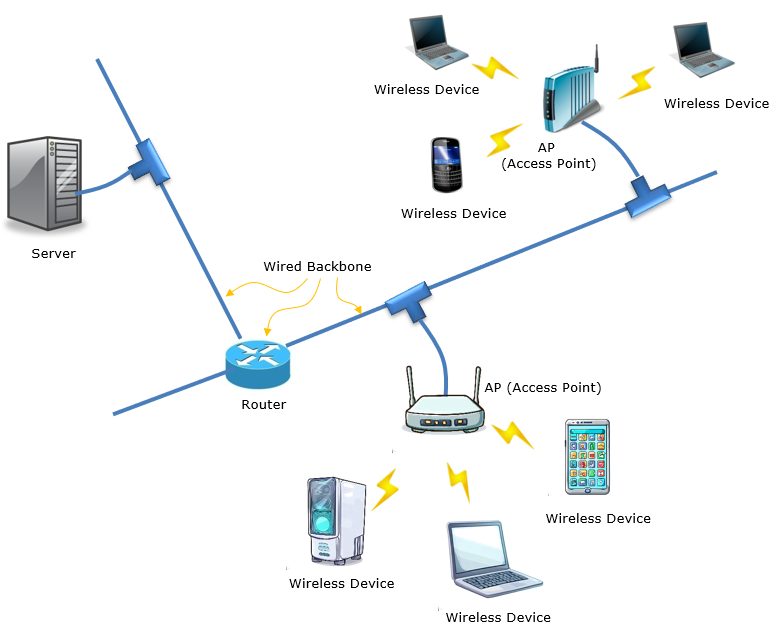
Network architecture can be as primitive as "router to client." Or you can go all-in and build a more enterprise-grade infrastructure: multiple APs in mesh mode, a controller, Ethernet backhaul, etc.
Mesh creates a unified Wi-Fi network (802.11k/v/r) where the load is shared. But there's a catch: it works vastly better if the access points are connected by wire. Otherwise, regular wireless repeaters simply cut speed in half — and hello, lag.
A bit about physics — there's no escaping it. No matter how much your ISP promises, you'll always get slightly less. Everyone has checked their signal speed via Speedtest, right? What affects it: RSSI (signal level), SNR (signal-to-noise ratio), and multipath effects (multiple reflected waves that interfere with each other). Concrete, mirrors, cabinets, and even your colleague or child — everything is an obstacle for the signal. If you're at -80 dBm or below, you'll be suffering and walking around the office with your laptop searching for a network. The placement of APs and antenna selection matters more than a pricier plan.
What to Do Right Away
The simplest approach is "from simple to complex." Here's a short, working algorithm for the first 10 minutes of diagnostics:
Check internet over a wired connection. Plug the same laptop or PC directly into the router via Ethernet, run Speedtest or the iperf3 utility (more on that shortly), and compare whether the speeds match. If ping is stable and everything is fine over the wire, the local network is to blame — and that's the direction to investigate.
Assess the signal level where everything is lagging. Built-in Windows/macOS tools, apps like WiFiman, or your router's own app will work. Critical thresholds: RSSI weaker than -70 dBm (lower is worse), and SNR below 20 dB already causes packet loss and noticeable lag. If everything is really bad, start adjusting the router antennas, pointing them toward the receiver, or relocate the router itself — place it higher or closer. Remove as many obstacles from the signal path as possible (walls don't count).
Simultaneously, check whether the router itself is "choking": open the admin panel and look at CPU load, RAM usage, and the number of NAT sessions. Problems most commonly occur with cheap routers. They often overheat, especially under heavy family use. Then Wi-Fi gets "cut" at the hardware level or the admin panel becomes unresponsive, even if everything is fine over the cable. The simplest fix is to replace it with a new one or at least re-flash the firmware.
Channels, Interference, and Household Sources of Problems
Wi-Fi is like the air around us: it should just work, but sometimes it suddenly starts acting up, and figuring out what's going on is not only stressful but can happen at the worst possible time.
Frequencies are the key to coverage. 2.4 GHz "penetrates" through walls and is historically popular since it's compatible with just about everything, but it's also the most congested. So in a city on 2.4 GHz, you're almost guaranteed to encounter interference and speed limits, and you'll unlikely see what the router manufacturer promised.
The table below shows Wi-Fi signal efficiency losses when passing through various materials. Data is for 2.4 GHz.
| Obstacle | Additional Loss (dB) | Effective Range |
|---|---|---|
| Open space | 0 | 100% |
| Window without tinting (no metallic coating) | 3 | 70% |
| Tinted window (metallic coating) | 5-8 | 50% |
| Wooden wall | 10 | 30% |
| Interior wall (15.2 cm) | 15-20 | 15% |
| Load-bearing wall (30.5 cm) | 20-25 | 10% |
| Concrete floor/ceiling | 15-25 | 10-15% |
| Monolithic reinforced concrete slab | 20-25 | 10% |
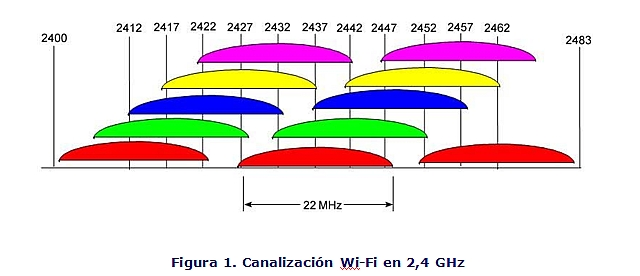
This shows the spectra of 11 channels. The color coding indicates groups of non-overlapping channels: (1,6,11), (2,7), (3,8), (4,9), (5,10). Wireless networks within the same coverage area should be configured on non-overlapping channels, where there will be less interference and collisions. For the 802.11n protocol, non-overlapping channel numbers are 1, 6, and 11 (for 20 MHz channel width); with 40 MHz channel width, these are channels 3 and 11.
The frequencies of these channels don't overlap with each other; the rest do overlap and create interference. It's like listening to music while someone walks up and starts talking to you. In an apartment building, choosing one of these three channels is like having a separate room where you can sit in peace.
The next frequency level, 5 GHz, provides more channels — approximately 20-23 (depending on the country). They don't overlap and give a speed boost with lower latency, which is great for streaming and gaming. But 5 GHz signal range is "short" — it penetrates walls and floors poorly. It's like a directivity pattern: the more directional the signal, the narrower the main lobe. So if the router is far away or the apartment is large, 5 GHz coverage may be weaker. And 6 GHz is practically an open field — minimal interference and gigabit channels, but its range is even shorter. Channel width is also a tradeoff: wider means faster, but higher chance of overlapping with neighbors.
To avoid guessing, run NetSpot, inSSIDer, or WiFi Analyzer. Look at the spectrum and pick the channel with the least congestion and overlap.
But technology isn't the only enemy of stable Wi-Fi. Household appliances can also significantly affect the airwaves. A microwave oven, when heating food, creates interference in the 2.4 GHz band almost identical to your router. Wireless DECT phones, Bluetooth speakers, LED lamps with drivers, and even the electrical wiring in your home create interference and reduce signal quality. Cheap routers are particularly sensitive to this interference, as they have weaker filtering systems.
So whenever possible, move the access point away from interference sources, or move the source further away.
One more thing that distinguishes the 5 GHz band is DFS (Dynamic Frequency Selection). This mechanism exists because radars (such as weather stations or military) may operate on some channels. If the router detects a radar, it automatically switches channels to avoid interference — and this is accompanied by brief connection drops. For stability, you can manually lock the channel in settings or choose channels where the probability of radar appearing is minimal. However, in some countries, operating on DFS channels without regulator permission may be prohibited, so proceed carefully.
Hardware and Architecture — Where Bottlenecks Hide
Let's start with the basics: the difference between a modem and a router. A modem is a device that connects your home to the ISP, converting the signal from the external network into digital format. A router distributes internet to devices, creates Wi-Fi, and manages traffic and security.
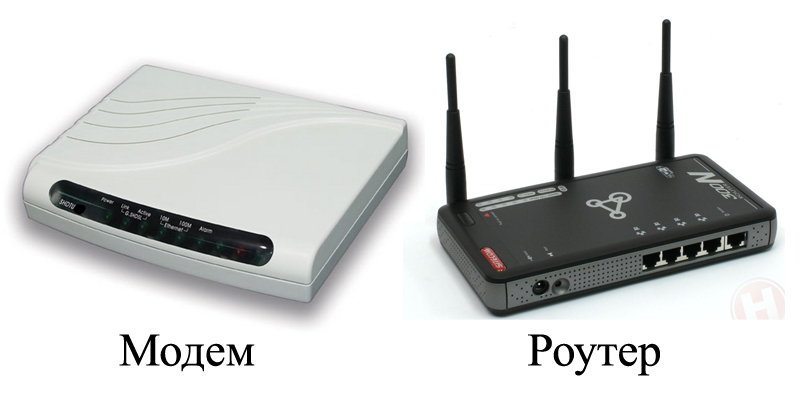
ISPs love handing out combo devices — no, not the agricultural kind, but router+modem units.
This is convenient but often leads to double NAT — when two devices simultaneously perform routing.
Service access suffers. In such cases, it makes sense to put the ISP's combo device into bridge mode and let your own router handle routing, removing the extra layer of intermediate network addressing and gaining better network control.
On the router itself, hardware limitations are often hidden. Modern Wi-Fi is complex software that heavily loads the device's processor and memory. For example, if the router's CPU is regularly loaded above 70-80% and the NAT table is filled to the brim, this leads to failures, high latency, and dropped connections. The software "freezes," and routers with limited memory and modest CPUs can't handle modern loads: dozens of devices, 4K video, online games, and smart home. When failures become frequent — it's time to upgrade to more powerful models with modern processors and sufficient RAM.
For large-scale coverage, mesh systems with Ethernet backhaul work much better — when individual access points are connected by wire, not just over Wi-Fi.
Mesh kits can achieve stable internet over large areas, in multi-story homes or offices.
There's also an alternative — Powerline adapters, internet through electrical wiring. Use these if running cable is impossible, but everything depends on your wiring quality. Ethernet remains the gold standard of stability.
Laptops and smartphones older than 5 years may not handle modern MIMO, beamforming, or the new 6 GHz band technologies. Additionally, power-saving modes in mobile devices sometimes reduce reception power, leading to temporary speed drops and unpredictable disconnections.
Cheap USB adapters and gadgets bought from bargain bins with low-quality components can easily shift their antenna with casual movements, creating dead zones.
Smart QoS Against Bufferbloat
For network geeks, here's another quick check: assess bufferbloat (packet queuing). Lately, many people experience delays during calls and sudden speed drops, even though the signal seems fine. The problem lies not in the transmitter but in traffic management. One heavy stream can completely saturate the channel. QoS mechanisms and packet schedulers like CAKE (Common Applications Kept Enhanced) distribute everything so that delays drop. Let's explore below.
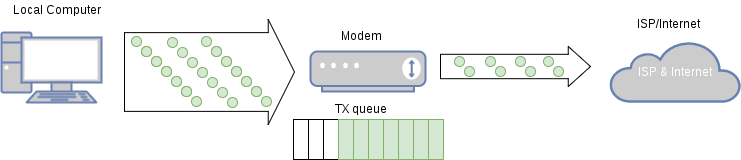
The key tools here are fq_codel and CAKE.
fq_codel (Fair Queuing Controlled Delay) appeared in the Linux kernel starting from version 3.5 and is now supported by most open-source firmware, including OpenWRT.
Each data stream gets its own queue with controlled length.
It's enabled with a single command (requires root privileges and the tc utility):
tc qdisc add dev eth0 root fq_codelNote that eth0 is an example; on your router the interface may have a different name (wan, pppoe-wan, etc.)
This is sufficient for basic bufferbloat protection.
CAKE (Common Applications Kept Enhanced) is a more modern option, available in OpenWRT and since RouterOS 7 on MikroTik. Essentially it's "fq_codel 2.0" with extended functionality:
- automatic network adaptation,
- support for up to 8 priority classes (DiffServ8),
- correct overhead accounting for different connection types,
- multi-WAN optimization.
CAKE is simpler to configure but requires more CPU resources. On fast connections with budget routers, CPU load can reach 100%. In such cases, limit yourself to uplink shaping, since the outgoing channel most often creates delays.
Don't forget to specify overhead compensation parameters matching your connection type. For example, Ethernet without VLAN adds 34 bytes of overhead, PPPoE about 40, and PPPoE+VLAN up to 44 bytes (up to 60 for VPN). DOCSIS (cable internet): 18 bytes, LTE (4G/5G): 30 bytes. Errors in these numbers will lead to incorrect shaping calculations, and delays won't go away as quickly.
Example CAKE with limit and overhead (example for 95 Mbps uplink):
tc qdisc add dev ppp0 root cake bandwidth 95mbit overhead 34(replace ppp0 with your WAN interface)
How to verify the result? Run a parallel iperf3 download (iperf3 -c server -P 10) and simultaneously ping an external host (ping 8.8.8.8 -i 0.2). With proper configuration, the load won't exceed 2-3 ms. Without it, ping easily grows 4-5 times.
To avoid overloading the router, it makes sense to configure CAKE only on the upload channel (uplink), since most latency problems arise there — the router usually handles incoming traffic better.
If you have your own observations, experience, or pain points on this topic — be sure to share your thoughts and questions in the comments!
FAQ
What is this article about in one sentence?
This article explains the core idea in practical terms and focuses on what you can apply in real work.
Who is this article for?
It is written for engineers, technical leaders, and curious readers who want a clear, implementation-focused explanation.
What should I read next?
Use the related articles below to continue with closely connected topics and concrete examples.