Why is “everything is a file” in Linux? Or why UNIX's ingenious abstractions are so ingenious
❯ Glossary Program – a text file that contains code in some programming language; Process – an abstraction of the operating system that allows you to monitor and control the progress of program execution; Core – the program underlying the operating system, written in a system lan
Editor's Context
This article is an English adaptation with additional editorial framing for an international audience.
- Terminology and structure were localized for clarity.
- Examples were rewritten for practical readability.
- Technical claims were preserved with source attribution.
Source: original publication
❯ Glossary
Program – a text file that contains code in some programming language;
Process – an abstraction of the operating system that allows you to monitor and control the progress of program execution;
Core – the program underlying the operating system, written in a system language (for example, C);
operating system – kernel and standard user applications;
Kernel module – a program that is dynamically loaded into the kernel to expand its functionality. A module can be a driver, a system call, or some arbitrary subsystem;
Driver – a program that abstracts the application programmer/program from low-level interaction with hardware and provides a convenient interface for interacting with it.
❯ Introduction: what will be in the article?
I think many people have heard that in Linux “Everything is a file.” When I first heard this from my friend, I thought that he was just making fun of me by calling things by other names, but in reality everything turned out differently. While this concept may seem trivial to experienced people, it can be daunting for newbies. Why are there novices, even more or less experienced programmers, since this entire layer of abstractions is hidden from them under libraries of programming languages, which are an even higher level of abstraction, and they simply don’t think about it.
We will try to discard all these, undoubtedly necessary and useful, libraries and tools and take a direct look at the fundamental abstractions of UNIX-like systems, which were laid down in the last century and which largely determined the course of software development.
To understand what will be written, as in all my articles, you do not need to have special knowledge and experience, you only need to have a general understanding of what a computer is, programming and know about the existence of Linux.
But still, since the topic of this article is the extensive capabilities of the Linux kernel and file system, some points about processes (running programs) and the kernel of the operating system will not be understood on the fingers. But that's no reason to be sad in my previous article We were just sorting out these things! If you do not yet fully understand what a process is and how the operating system launches it, and the word kernel terrifies you, then I highly recommend reading my previous article.
What will be covered in this article:
What are modern hard drives (SSD) at the physical level?
How many statues of liberty would it take to write 1 trillion bytes?
How the file system is stored on the disk and how the computer understands it;
Let's understand that system calls are all we have (there is really nothing else);
Let's take a look at kernel modules and drivers and even write a simple Linux kernel module!;
Let's understand what fundamental ideas are behind the concept of “Everything is a file” and how this is implemented in software. Let's give simple examples;
Let's be surprised that processes are a file;
We will be surprised that the mouse and touchpad are a file;
We will be surprised that the Internet connection is a file.
So, we will start, as always, with the basics, which are worth understanding (feeling) before we move on to the main topic, let's go!
❯ Basics to understand
❯ Hard disk, information on it
It's no secret that our photos, videos and all kinds of programs are stored on our hard drive. Now it doesn’t matter to us whether the disk under the read head (HDD) is spinning under the case or the charge level of the floating gate transistor (SSD) is changing. It is important for us to know only one thing - this miracle of technology can record and store information for a long period of time. And we should treat the disk as a regular byte array. It was a real discovery for me, with considerable surprise, when I realized that if I saved a photo on my laptop and then put it in a dusty corner or under the bed, after, say, 10 years, I would still be able to turn it on and look at this photo.
If we print (draw) the same photograph on a sheet of paper, then the situation above will not impress us much, although paper is abstractly the same carrier of information in this context. Information on paper, without delving into molecular physics, is stored in the form of ink. Information on a hard drive, such as an SSD, is stored in the form of a charge level on the floating gate of a transistor. A transistor is a basic circuit element, a floating gate is its key element (part).
A classic transistor (bipolar or field-effect) does not store information, it is a binary switch (pass charge / do not pass charge), and a floating gate transistor can store information and even more than one bit. The number of charged particles (electrons) on the gate of the transistor determines its charge level. The number of bits that one transistor (disk cell) can store is determined by the number of discrete charge levels into which we can divide the total charge range (the picture shows 4 memory cells with different numbers of charge levels):
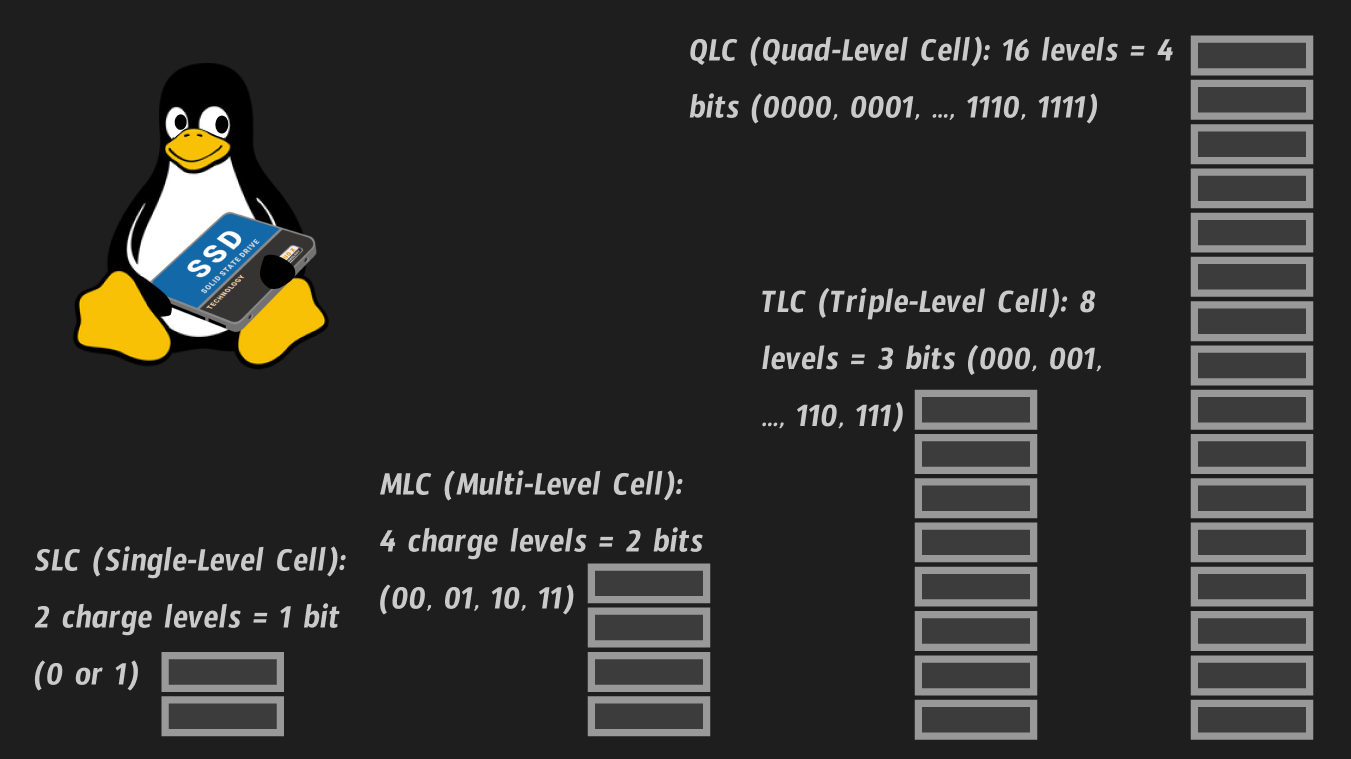
PS: The list of references will include an excellent video on the topic of SSD devices
A hard drive (SSD) is made up of billions or trillions of transistors. For example, a 1 Terabyte (1000 Gigabyte) disk contains about 3 trillion transistors. But we will not develop this topic further, we just need to feel how skillfully humanity has subjugated electromagnetic phenomena. And that while your laptop is collecting dust under the bed along with flies and spiders, your data, be it photos, videos, games, your progress and achievements in games, is stored in the form of an electrical charge on trillions of transistors and placed in some insignificant piece of space (disk).
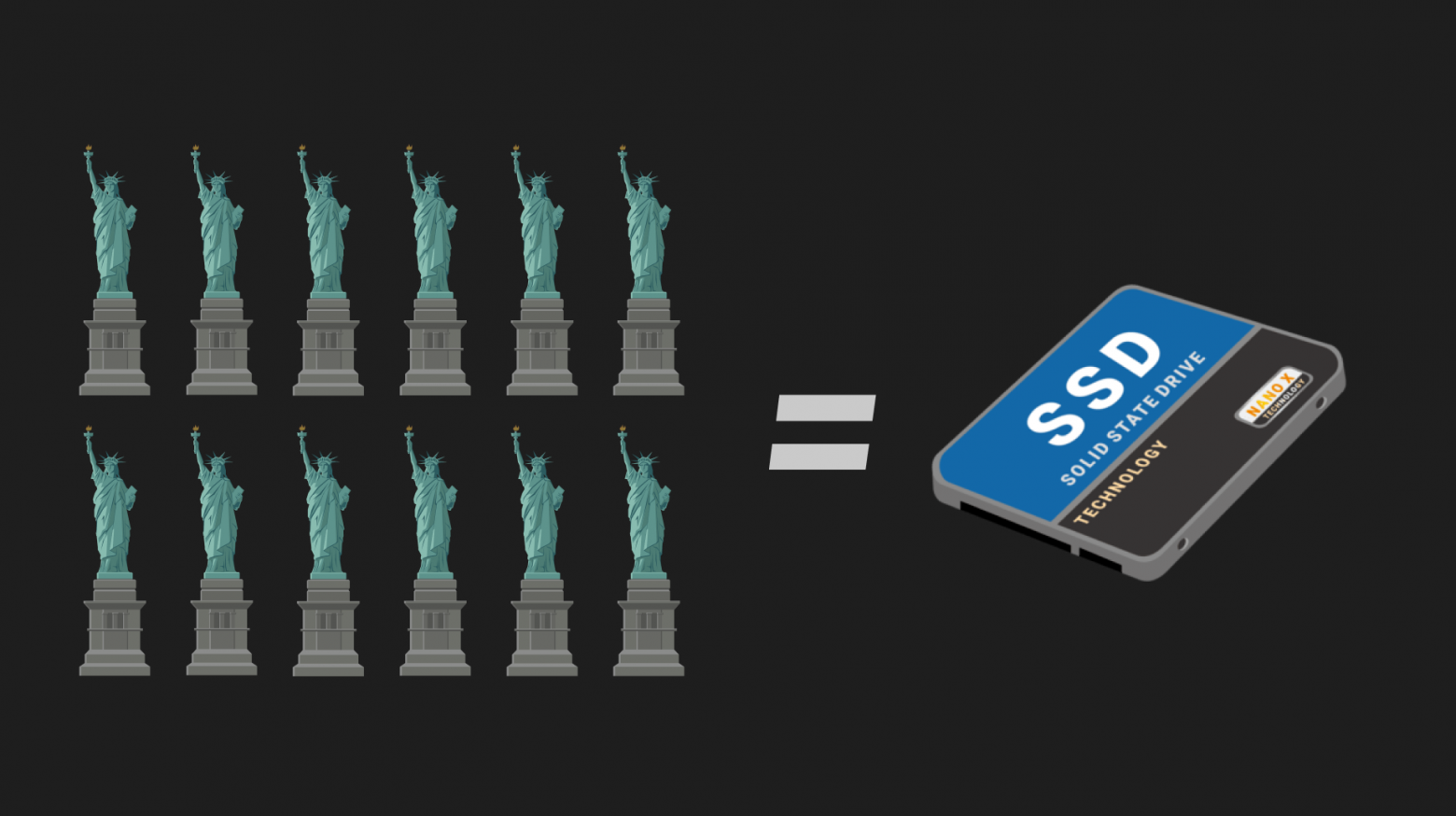
Let's give one last example on this topic. Suppose we have a 1 Terabyte disk and we completely fill it with arbitrary text. 1 Terabyte is 1 Trillion bytes. 1 character in encoding ASCII takes 1 byte. It turns out that we will be able to write 1 trillion characters. On a standard page of A4 office paper with a standard 12-14 point font, approximately 1500 to 3000 characters fit. Let's take 2000 characters as a standard (although this number can vary greatly depending on the font and other aspects of text design).
It turns out that if we want to write a trillion characters (letters) on paper, then we will need 500 million sheets (1,000,000,000,000 characters / 2,000 characters = 500,000,000 sheets). A standard A4 sheet weighs 5 grams, 500 million sheets weigh 2,500,000,000 grams, which is 2,500,000 kg, which is 2,500 tons.
What is 2500 tons? For example, this is 12 and a half statues of liberty, 166 of your country houses (if you take a house for 15 tons) or a couple of thousand cars. A 1 Terabyte hard drive weighs approximately 100 grams, although it may be less, which is already 25 million times less than the volume of paper that would be required to record the same information.
❯ File system
Of course, we can just fill the disk with bytes (ASCII characters/letters), but in the context of modern computers this will not make any sense. The disk must have some kind of marking, instructions/map for the computer so that the latter can navigate the data recorded on it. It’s exactly the same with this article, if I remove headings, indents, pictures and paragraphs, it will be completely uninteresting and difficult to read. Yes, the analogy is not complete, but still.
With the proper desire, a person can read a completely unformatted text, but a modern computer cannot read an unlabeled disk. No, of course, we can create/program a computer that will simply read our 1 Terabyte from the disk one byte at a time and that’s it, but for people, businesses, etc. – you need versatility. Therefore, the ability of a computer to read a disk is not limited to the situations above. We need a way to read completely different data and do it universally, so the computer does not recognize a “bare” disk (an array of zeros, roughly speaking, if we take the disk as an array of bytes), it needs markings, some kind of system pre-recorded information on which
he can lean).
We will not delve into the layouts and structures of file systems, but will accept the following abstraction, which in general terms reflects what is actually happening:
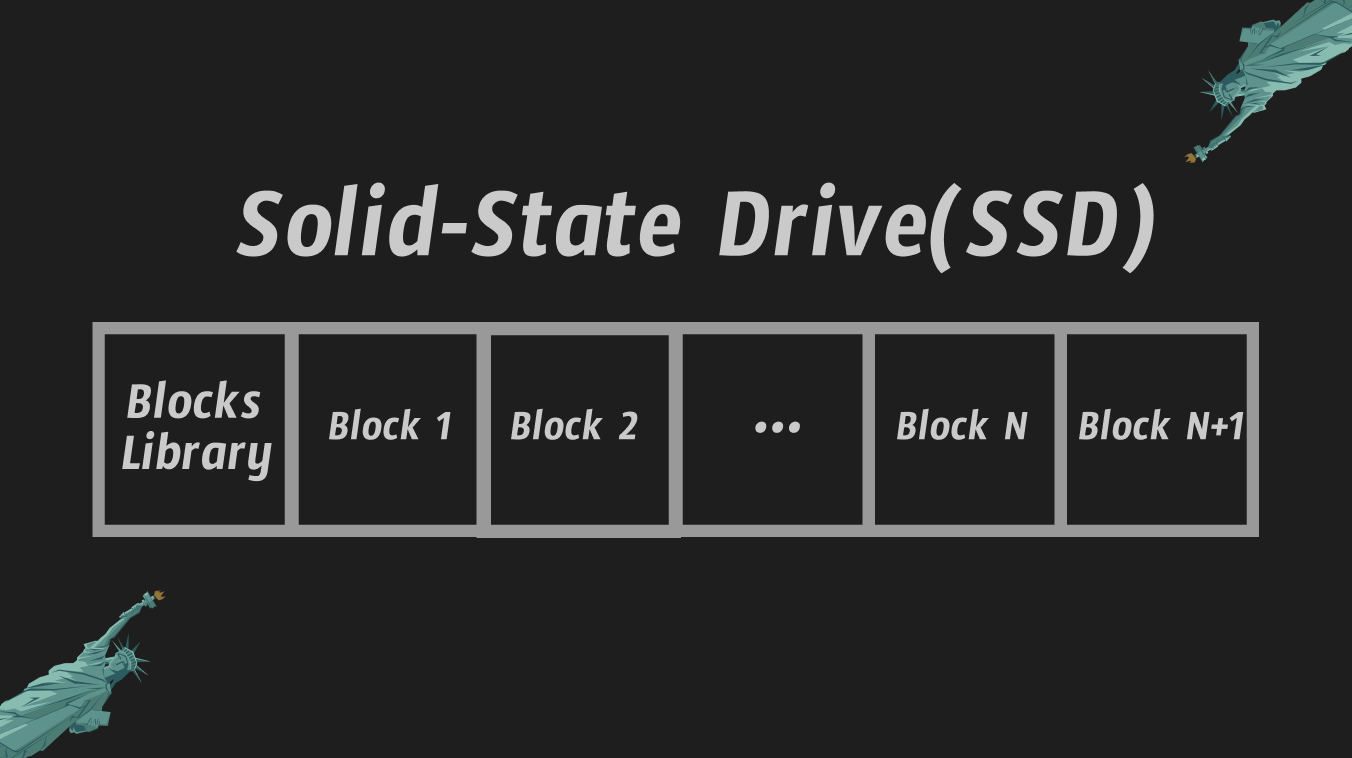
Our computer does not address individual bytes of the information storage device (disk), this would be too expensive and inconvenient; instead, it addresses the disk in blocks, for example 512 bytes for MBR markings. One or more blocks (labeled “Blocks Library” in the picture) stores information about which blocks contain which files. That's all, this is the disk layout. Of course, in reality, not everything is so trivial; there are a great many ways to organize information on a disk for different needs and tasks. It’s convenient for us to perceive the disk as an array of these same blocks, or just a byte (after all, this is an abstraction, it’s easier) and understand that the disk must have some kind of markup before it can be used (in the standard sense).
Our files (photos, games, etc.) are stored according to this scheme; different parts of the files are located in different blocks. The accounting of ordinary blocks with user data and access to special blocks with information about ordinary blocks is maintained by the operating system, or more precisely, by its kernel. From the side of an ordinary user, we can access these files through the command line or GUI file managers, for example through nautilus in Linux or through the familiar Explorer in Windows :) The operating system kernel will simply read its special blocks, understand in which blocks our file lies, assemble it in parts and “give it to us”.
But not all files in Linux that we can access are stored physically (that is, in the form of charge levels on transistors) on the hard drive. Some exist only while the computer is running, which means it is logical to assume that they are stored in random access memory (RAM), which stores information only when the computer is turned on; it is volatile. Unlike an SSD, which can store information for years without an external power source.
These files are simply operating system kernel resources (don't worry, we'll figure it out later) that have been "mapped" into the file system to provide a convenient interface for interacting with them. We will look into this later in the article.
❯ System calls are all we have
Since all user processes run in a certain environment, which we call the operating system, access to all physical (real devices) and logical (OS resources: file system, process information, etc.) resources are provided to processes by the operating system kernel.
The provision of these resources is implemented by the system call mechanism, here is their complete list, at the time of writing there are 467 of them. The simplest of them are, for example, sys_exit, which the compiler inserts at the end of programs when you write return 0; at the end of the function main:
#include <stdlib.h>

int main() {
	exit(0); // return 0;
}
Or a system call sys_writewhich is called inside the function printf V С, and indeed inside any function print in programming languages (and not only print, but more on that later):
#include <stdio.h>
#include <stdlib.h>

int main() {
	printf("Hello, World!\n");
	exit(0); // return 0;
}
printf is part of the standard library C - libc and is needed for formatted output (short for print format) for the convenience of programmers, but we can use a lower-level function write, inside printf it is she who is called (there is an excellent article on this topic on é):
#include <stdio.h>
#include <unistd.h>

char *string = "Hello, World!\n";

int main() {
	write(STDOUT_FILENO, string, 14);
	return 0; // exit(0);
}
The first argument we pass is the file descriptor to which we want to write, the second is a pointer to the beginning of the line, and the third is the length of the line. In our case, we want to write to the terminal, so the file descriptor is in the first argument of the function write will 1 – a descriptor for the standard output stream (don’t worry, we’ll figure it out soon). Yes, we interact with writing to the terminal in the same way as with writing to a file. By the end of the article we will try to understand why this is so, why this is necessary, but for now we’ll just take it on faith.
STDOUT_FILENO is a constant that is defined in the standard library in unistd.h and this constant is equal 1:
/* Standard file descriptors. */
#define STDIN_FILENO  0 /* Standard input. */
#define STDOUT_FILENO 1 /* Standard output. */
#define STDERR_FILENO 2 /* Standard error output. */
Is the function write system call? No. Function write, oddly enough, is just a function. This is a system call wrapper written in the standard library of the language C.
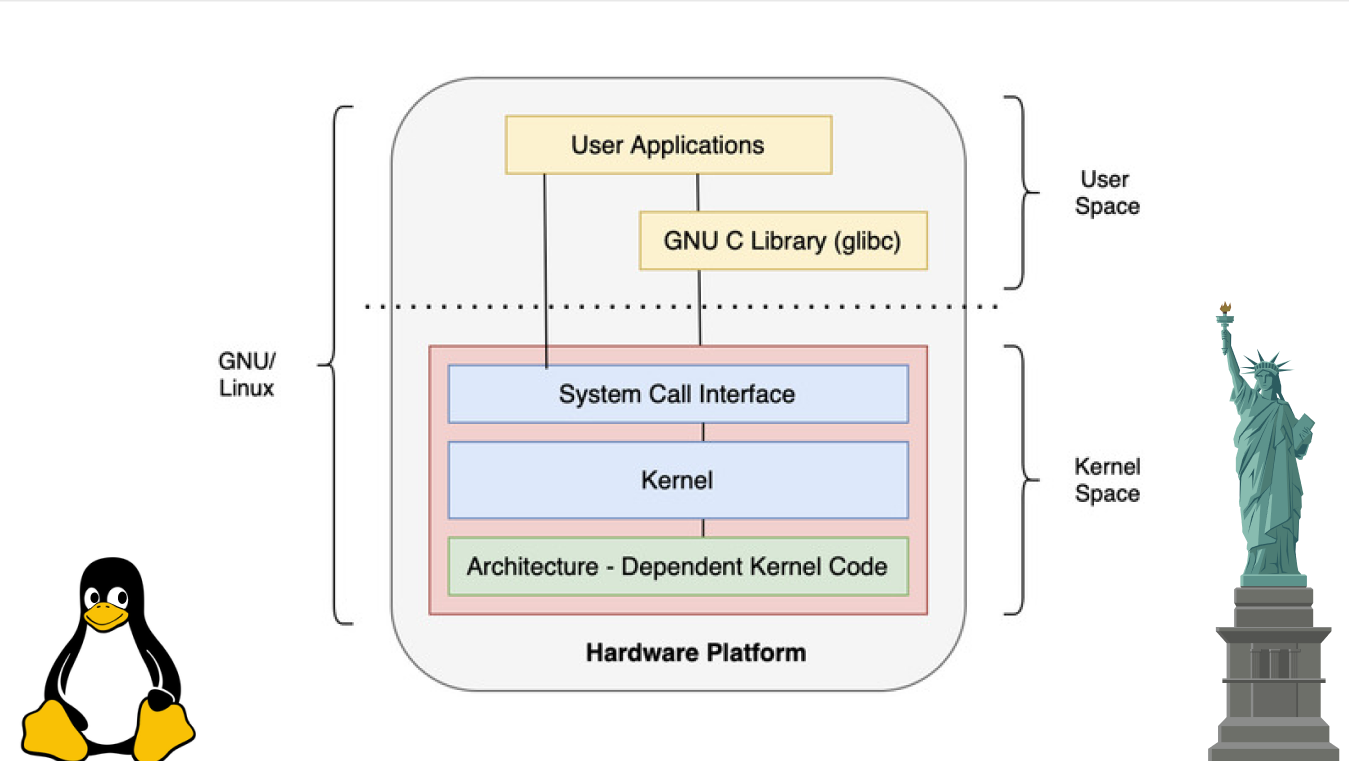
Here we will only say that system calls are executed in a certain privileged mode, from which you can access system resources. The operating system kernel operates in this mode. When a user program calls a system call, the program is said to have moved from user space to kernel space, which is what you can see in the picture above. This means that the program now works in the kernel address space, that is, with a specific location in RAM (virtual memory) in which the kernel code and data are located. Access to this data is only possible in kernel mode, this is guaranteed by hardware! Learn more about system calls, their use and virtual memory in my previous article.
From this you can make very important conclusion: All programs have at their disposal are system calls. All programs are reduced to calling system calls, nothing else simply exists. Everything else is application wrappers, for example functions in the C library libc or standard functions in any other programming language. Without system calls, programs would not be able to perform any payload and nothing would be available to them. Nothing. Without them, processes would only be able to perform the most trivial mathematical operations and a few other things. That is why once upon a time we decided to write an operating system, for convenience!
Therefore, as we mentioned above, we have only 467 (at the time of writing this is the number) different system calls and on their basis all the colossal set of standard functions, all programs, games, etc. are built. They are the building blocks for absolutely everything that you have seen, are seeing and will be able to see on your computer screen.
All this was invented for security, since it would be very reckless to give user programs access to the resources of the operating system kernel. Programs could accidentally or intentionally crash the system. For example, erasing the entire hard drive is all, now you have in your hands just a piece of silicon with a plastic/iron case :) After all, in this case, even a reboot will not help, because not only was the operation of the OS disrupted (something was overwritten in RAM), the OS was completely erased, as was all the markings on the disk!
❯ Kernel modules and drivers
One last thing we'll cover before we get to the fun stuff!
The Linux kernel is monolithic, that is, all kernel components (all its subsystems) are located in a single kernel space, in one place in memory (we already mentioned kernel space above). And if one part of the kernel “dies,” then the entire system dies; this is the monolithic kernel. But even though the Linux kernel is monolithic, it still supports loading modules. For what?
Well, for example, we want to connect a new Raspberry Pi model or just some outlandish piece of hardware to the computer. Of course, we initially won’t have drivers (we’ll figure out what they are in the next paragraph) for this piece of hardware. And if the kernel did not support dynamic loading of new modules, we would have to write a driver for this new device, insert its code into the kernel code and recompile ALL the core again, it is very difficult, sad and long!
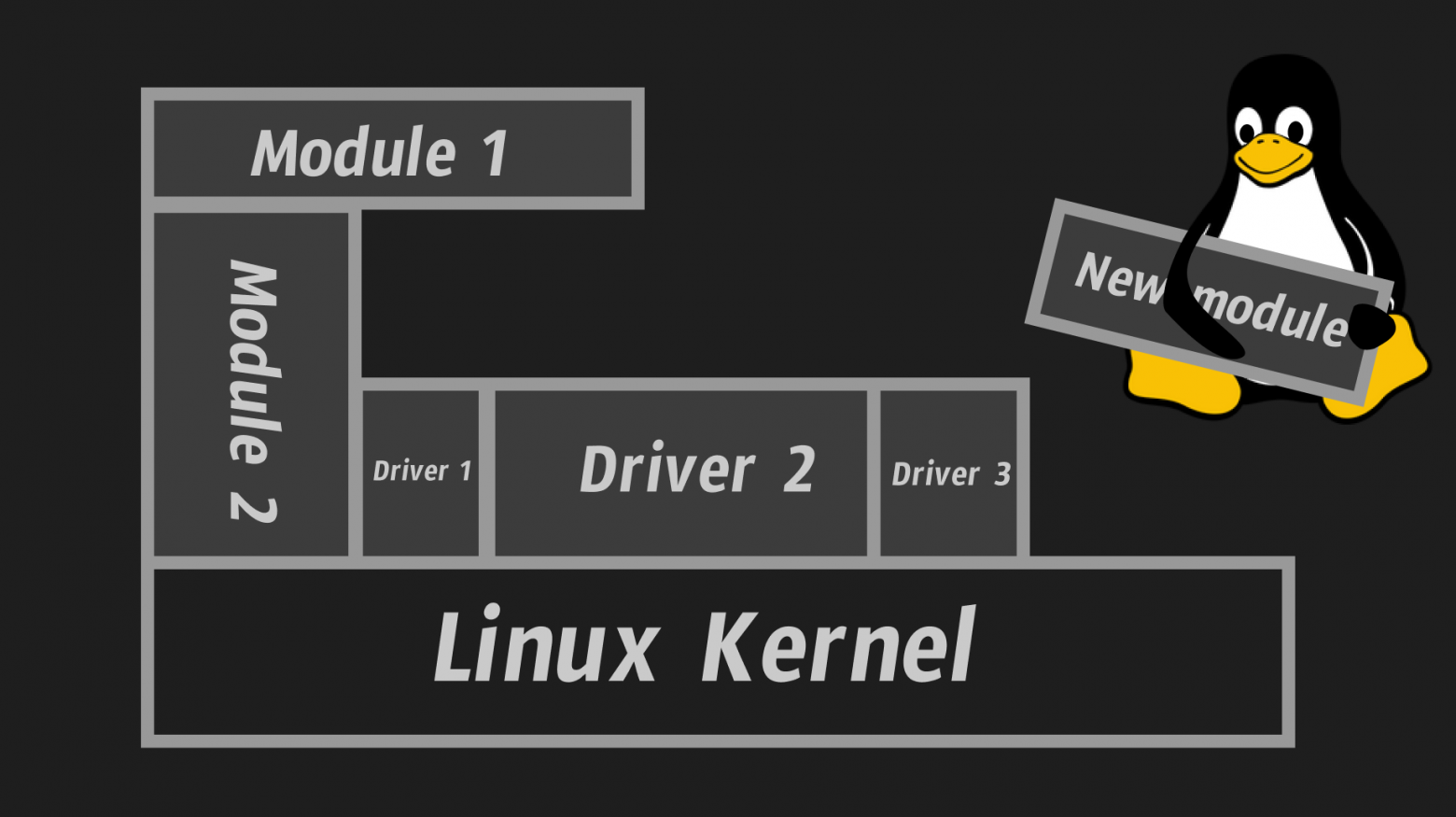
This is why the Linux kernel supports dynamic loading of modules, so that new functionality can be added to the kernel without recompiling the entire kernel or even rebooting the system!
So what are a driver and a module, how do they differ and why do we need them?
A driver in a general sense is a program that interacts with any physical device and acts between hardware and application programs as an intermediary/translator that translates from hardware language to software language. In short, it abstracts us, as programmers, from low-level interaction with devices and provides a convenient programming interface for interacting with them. This is a classic example, but this is not always the case. A driver does not necessarily abstract any physical device; it can also abstract some operating system resources (we'll look at this later, in the next practical section).
A kernel module is simply a program that is part of the kernel and can be used for many different purposes. For example, modules are needed to create new system calls, drivers, network subsystems, and so on. But you can write a module that simply prints “Hello, World!” to the kernel logs when it is loaded into the kernel and Goodbye, World!" when it is unloaded from the kernel. Please love and favor:
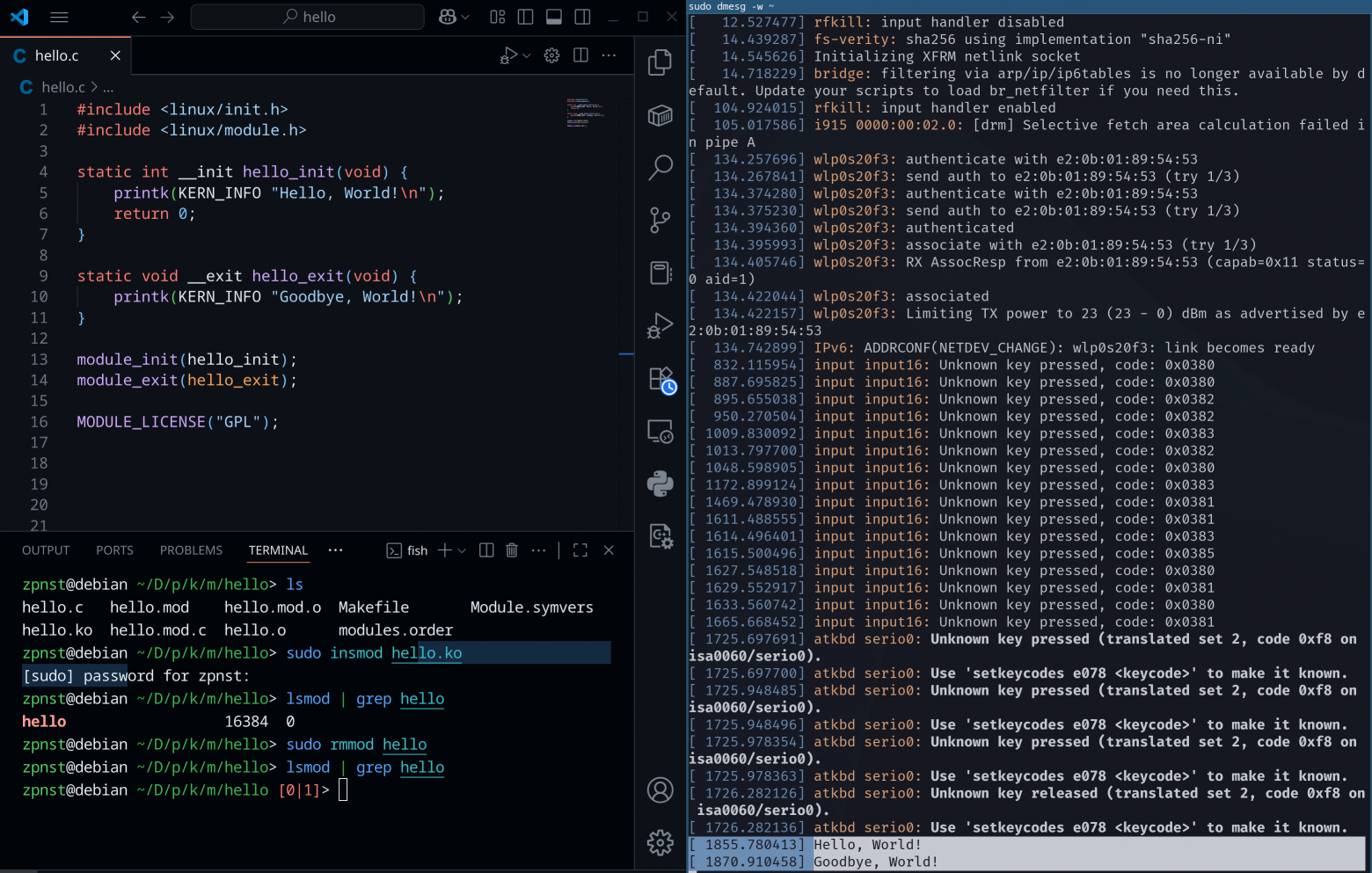
We will not analyze this code in detail here (what kind of printk is the print kernel, strange function signatures and other things. All this is specific to kernel-side development), but in the future I will definitely write a series of articles devoted to writing modules, drivers and system calls in Linux.
Let’s just understand in general terms what is happening in the picture above:
Some code was written that the kernel perceives as a module. Yes, it's simple C code, but it's a bit specific;
On the right using the command
sudo dmesg -wwe displayed kernel logs;Next, the module needs to be compiled, the compilation process is omitted here, since this is not what the article is about, but there is nothing complicated here (
lsgives us the auxiliary files that appear after compilation). Among them there arehello.ko– this is the executable file of our module. Exactly the same as regular executable files. But, of course, with some caveats that are beyond the scope of this article;Using the command
sudo insmod hello.kowe connect our module to the kernel, the function is executedhello_init. We see the result of its work in the kernel logs in the first of the selected lines (the lowest lines in the right terminal);Using the command
lsmod | grep helloWe check that our module is actually connected to the kernel. Justlsmodwill display all modules in the system at the moment;Using the command
sudo rmmod hellounload the module from the kernel, the function is executedhello_exit, the result, again, is visible in the kernel logs;Now
lsmod | grep helloIt doesn't show anything. This means that we have successfully unloaded the module.
We just saw “Hello, World!” from a bird’s eye view. from the world of nuclear development. Based on the template above, drivers, system calls and other things are written.
From this we can conclude, that every driver is a kernel module, but not every kernel module is a driver.
We will need all this knowledge to understand the concept of “Everything is a file”, let’s get to it!
❯ Everything is a file
❯ What is it in general terms?
We have already understood that system calls constitute the complete interface for interaction with the kernel in terms of the logical and physical resources of the system. The idea of the “Everything is a File” concept is designed to unify interaction with seemingly different entities/objects.
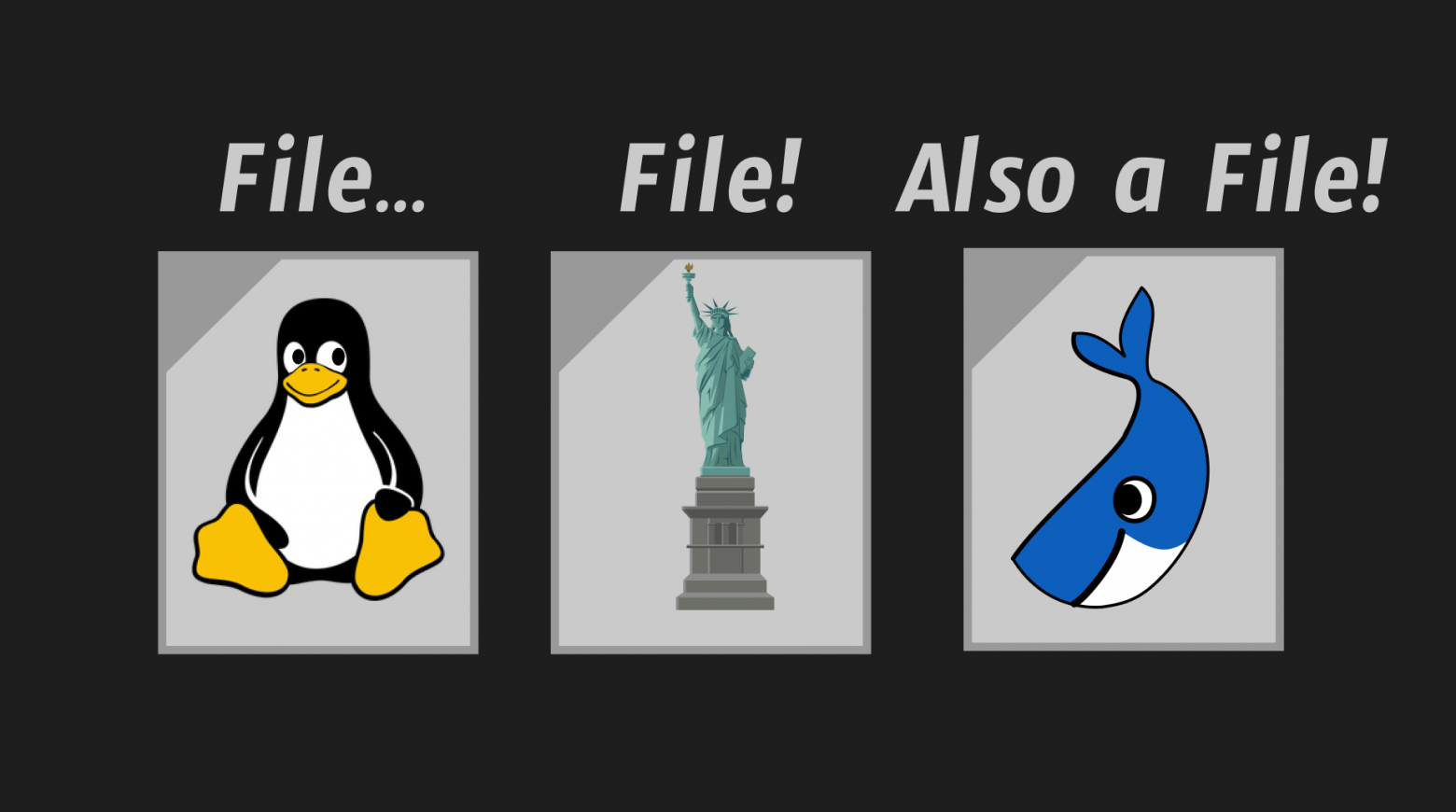
For example, it doesn't make much difference to an application whether it writes to a file on disk or to a network connection. Something, something, appears to be a file that supports operations read, write, close and so on. For a client, contacting a server on the other side of the planet is no more difficult than writing a file to disk. The operating system kernel does all the dirty work.
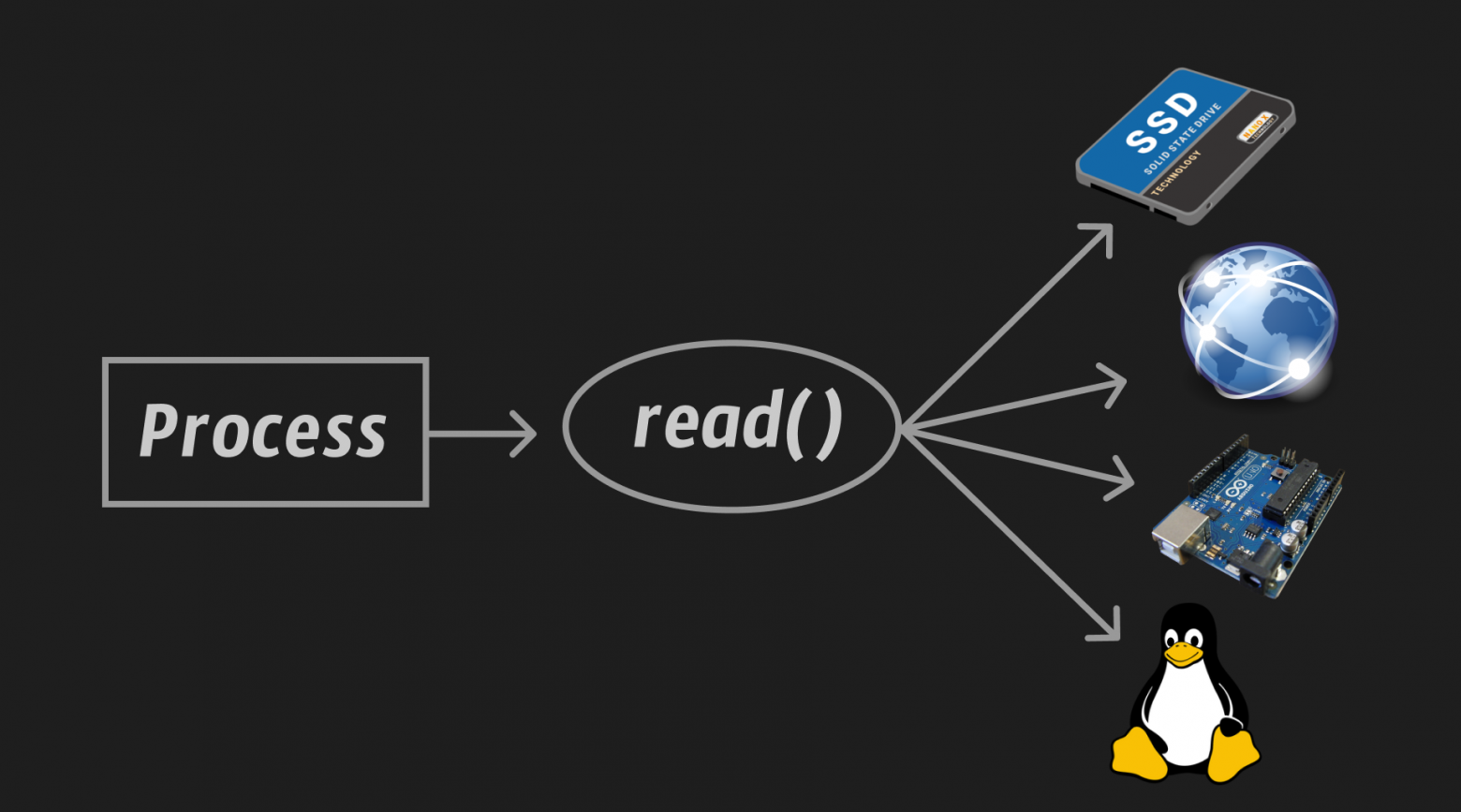
We(process) can contact through read() to a file on the hard drive, to an Internet connection, to any internal buffer of an arbitrary device (Arduino in the picture above), to the logical resources of the system (they are denoted by Tax in the picture, that’s the name of the Linux penguin).
All of the above requires a driver! How will the operating system know what kind of markup is on the disk, what exactly are the parameters of the Internet connection and what network protocol is used to transfer data, what type of buffer is on any device and in what format does it store data, what data and in what format to receive from the operating system???
And she doesn’t need to know all this! For each of these things, a separate driver is written, which implements a standard set of functions for working with the file(open(), read(), write(), close() etc.), within which the specifics of interaction with a specific object are already described. That is, the driver’s task is to tailor the interaction with a particular object (device/resource) to the file interface.
Indeed, if everything is clear with reading and writing to disk, then, for example, you need to think about a network connection like this: write() – send data over the network, read() – we read what they sent us over the network, close() – we finish transmitting data over the network, etc. Congratulations, the network connection/interaction is now a file!
I hope it’s already clear to you how this works, but let’s take a look at how it’s implemented in the kernel and write our own small example. The Linux kernel has a structure called file_operations, then the driver fills it! This is similar to the implementation of an interface in other languages, but in C it does this using pointers to functions in the structure (they look like a regular function signature, only the name is taken in brackets and preceded by *):
#include <stdio.h>

struct Animal {
	void (*speak) (char *word);
};

void speak_cat(char *word) {
	printf("%s, Meow!\n", word);
}

void speak_dog(char *word) {
	printf("%s, Bark!\n", word);
}

int main() {
	struct Animal cat;
	cat.speak = speak_cat;

	struct Animal dog;
	dog.speak = speak_dog;

	cat.speak("Hello");
	dog.speak("Hello");

	return 0;
}
Program output:
Hello, Meow!
Hello, Bark!
Oh, OOP in C?! In fact, yes, but more on that in another article. We are only interested in the fact that this example with a cat and a dog fully reflects the concept “Everything is a file.” Indeed, look at the picture below, and then at the previous one again.
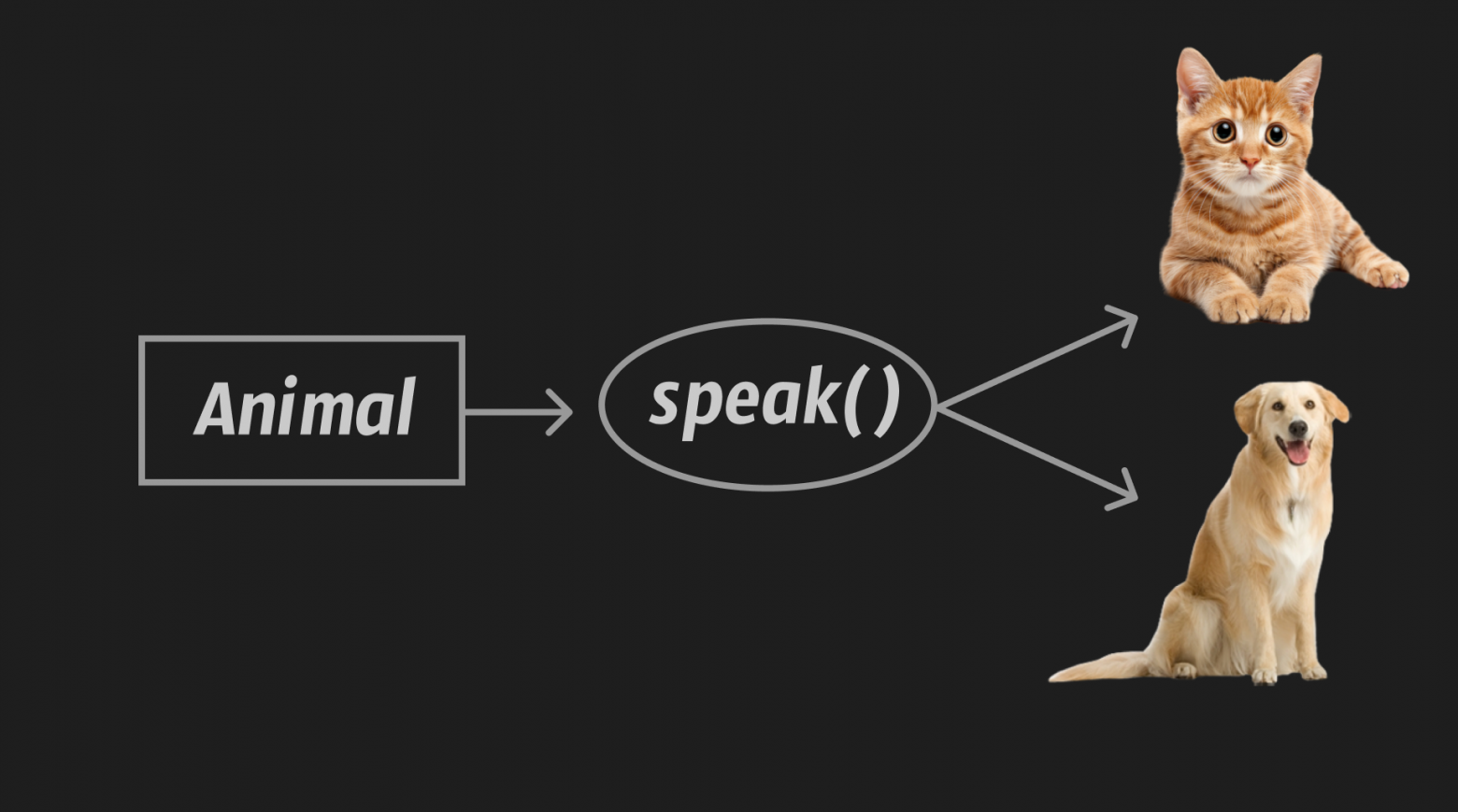
Yes, they are the same, I hope you followed the link above to the structure definition file_operations(I'm giving you a second chance) and saw that it was the same thing.
Instead of the animal in the example above, we create a driver, say my_driver. Next we write the functions my_driver_open(), my_driver_read(), my_driver_write(), my_driver_close() specific to the device/resource that our driver abstracts. Filling function pointers open(), read(), write(), close() in a structure instance file_operations our driver accordingly.
Everything - now a cat, a dog, the entire Internet, any electronic device - it’s all a file! After description file_operations in the driver and loading it into the kernel, all the “dirty” work, as we said earlier, is performed by the kernel.
Now that we actually understand the nature of this abstraction, let’s look at the most popular false files, under the guise of which there are not files in the standard sense of the word.
❯ Look at /proc
Directory /proc or procfs(process file system) is mounted (attached) to our file system when the computer starts. Data from folder /proc, as has been said many times before, are not contained on the hard drive, they are contained in RAM!
procfs contains comprehensive information about processes and some other system resources.
Consider a simple C program:
#include <stdio.h>
#include <unistd.h>

int main() {
	printf("My PID: %d\n", getpid());
	while(1);
	return 0;
}
All it does is print out its PID (Process ID) and go into an infinite loop so that the process does not terminate.
Let's run:
zpnst@debian ~/D/a/pr> gcc main.c
zpnst@debian ~/D/a/pr> ./a.out
My PID: 49489
Now our process “hangs” in the system. It's time to look at the folder /proc:
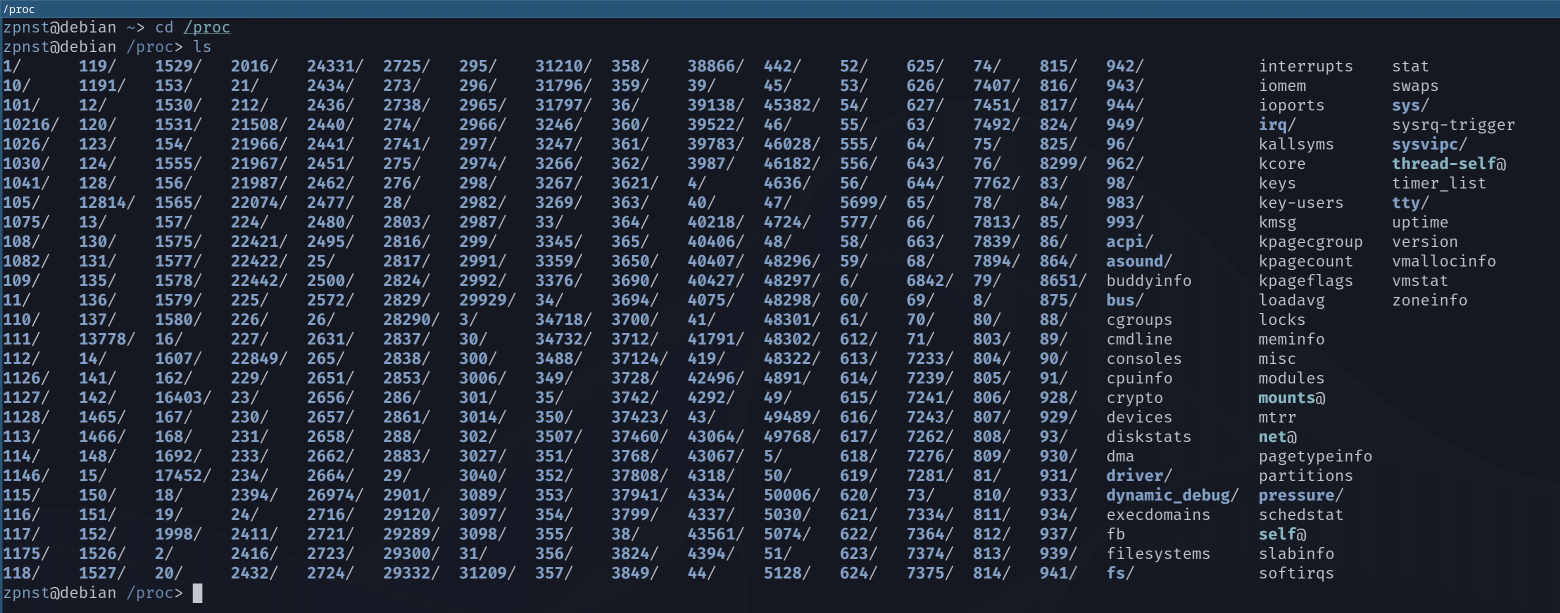
All these directories relate to specific processes; these folders contain complete information about them. Our process has a PID 49489, let's go to his folder:
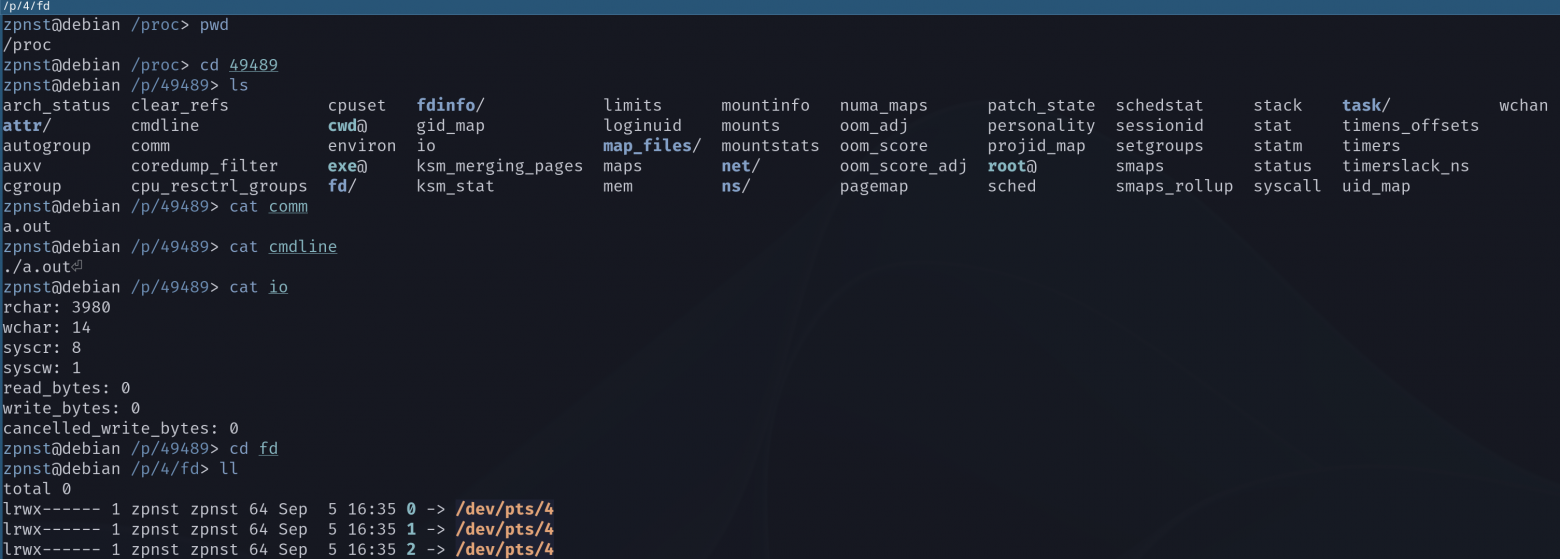
What have we done?
In a folder
/procwent into49489, it contains files and folders with information about our process. They are not on the disk, they are kernel resources. When usingread()for these files, the kernel simply gives us the relevant information about the process. Just a convenient interface, nothing more!;Let's look at a few simple files.
commshows the name of the executable file,cmdlineshows the full command line with which the process was launched, including all arguments (we didn't have any),ioshows detailed statistics of I/O operations.... and so on;In a folder
fdprocess file descriptors are stored. By default there are three of them:stdin(standard input),stdout(standard output) andstderr(standard error stream), we will look at them in more detail in the next section. When a process opens a file, the kernel within that process assigns a handle to that file through which the process can interact with it. Yes, standard input/output streams are also files (we'll look at this in more detail in the next section).
Let's open a regular file and check the folder fd this process in /proc:
#include <stdio.h>
#include <unistd.h>
#include <fcntl.h>

int main() {
	printf("My PID: %d\n", getpid());

	// Открываем файл и получаем его дескриптор с помощью `open()` – оболочки над системным вызовом `sys_open`
	int file_descriptor = open("file.txt", O_RDONLY);

	char buffer[13];

	// Читаем содержимое файла в буфер с помощью `read()` – оболочки над системным вызовом `sys_read`
	read(file_descriptor, buffer, 13);
	printf("%s\n", buffer);

	while(1);
	return 0;
}
Conclusion:
zpnst@debian ~/D/a/pr> ls
file.txt  main.c
zpnst@debian ~/D/a/pr> cat file.txt
Hello, World!⏎
zpnst@debian ~/D/a/pr> gcc main.c
zpnst@debian ~/D/a/pr> ./a.out
My PID: 12927
Hello, World!
Now let's look at the descriptors of our process with PID 12927:
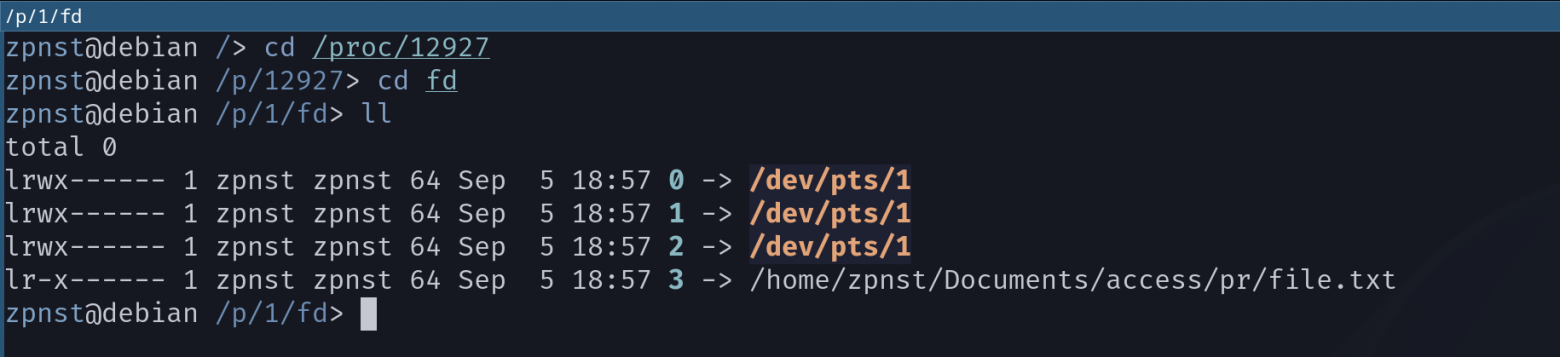
Another descriptor appears, which is a link to our file. And what is so strange that standard streams refer to? We'll figure this out in just a few sentences.
Also, a process can access its data in procfs on the way /proc/self. For example, let’s open the one we already know /proc/self/cmdline. It contains the command with which the process was started:
#include <stdio.h>
#include <unistd.h>
#include <fcntl.h>

int main() {
	char buffer[32];
	int file_descriptor = open("/proc/self/cmdline", O_RDONLY);
	read(file_descriptor, buffer, 32);
	printf("%s\n", buffer);
	return 0;
}
Conclusion:
zpnst@debian ~/D/a/pr> ./a.out
./a.out
That's right, we launched with ./a.out, which means in cmdline - ./a.out.
That is, the process does not even need to “know” its PID, it can simply enter /proc/self, and the kernel itself will understand what kind of process it is and what data to give it. Very comfortable and elegant!
❯ Look at /dev
Directory /dev(devices) contains files that represent/abstract the physical devices and logical resources of the system. We have repeated the above sentence many times already in this article, let's touch this idea with our own hands!
❯ Terminals, standard input/output streams
As we said earlier, the kernel associates three file descriptors with each process by default. Standard input, output and error stream: stdin, stdout And stderr.
Also, we have already seen earlier that in the folder fd V procfs specific process they point to something incomprehensible lying in the folder /dev. Please love and favor pts is a pseudo-terminal.
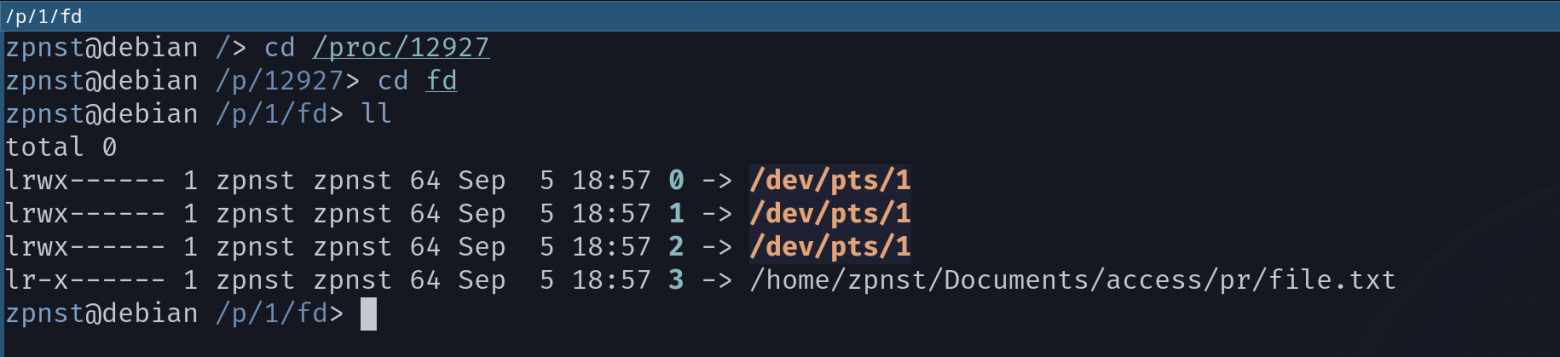
Here, to be honest, we are stepping on very shaky ground. The topic of terminals, terminal emulators, pseudo-terminals, shells and all that is very vast. I also plan to devote an entire article to this topic, since it is also interesting from a historical point of view. But to understand it, you need to firmly understand the concept “Everything is a file.” And in order not to turn this article into a mess, we will consider only the basic concepts that affect our main topic.
The pseudo-terminal acts as an intermediary between the process and the terminal program (I have this GNOME Terminal). A pseudo-terminal is a kind of pipe, it has two ends:
Master end – for a terminal program;
Slave end – for your program;
The pipe itself – character device
/dev/pts/1.
It is needed so that the process/program can communicate with a terminal program such as GNOME Terminal.
Since we agreed not to delve into the details of how terminals work in Linux, we only need to know one thing - for the process, writing something to a terminal is the same as writing something to a regular file.
Each thread references a device /dev/pts/1, then what is the difference? Nothing! I'm not kidding, this is just a formality, an agreement, which is obvious, since all three links in the streams refer to the same file (device).
It would be possible to get by with one thread, but such a division turns out to be very useful in many cases, for example here:
#include <stdio.h>
#include <unistd.h>
#include <string.h>

int main() {
	const char *string = "Hello, !\n";
	write(0, string, strlen(string)); // Пишем в stdin
	write(1, string, strlen(string)); // Пишем в stdout
	write(2, string, strlen(string)); // Пишем в stderr
	return 0;
}
Conclusion:
zpnst@debian ~/D/a/pr> ./a.out
Hello, !
Hello, !
Hello, !
Since all files refer to the same pseudo-terminal, to the same device, therefore write() behaves the same and for each of the stream descriptors it simply writes to the terminal.
But thanks to separation, the output can be filtered:
zpnst@debian ~/D/a/pr> ls
a.out*  main.c
zpnst@debian ~/D/a/pr> ./a.out > output.txt 2> errors.txt
Hello, !
zpnst@debian ~/D/a/pr> ls
a.out*  errors.txt  main.c  output.txt
zpnst@debian ~/D/a/pr> cat output.txt
Hello, !
zpnst@debian ~/D/a/pr> cat errors.txt
Hello, !
zpnst@debian ~/D/a/pr>
What have we done?
We looked at the contents of the working directory, so far there is only the text of the program and its executable file;
Run the program, redirecting the standard output to a file
output.txtby using>, and the standard error stream inerrors.txtby using2>;Now we have the files
output.txtAnderrors.txt;We did not touch the input stream, so one and three lines were output to the terminal;
The second line is now in
output.txt, and the third inerrors.txt.
We can play with the pseudo-terminal device directly:
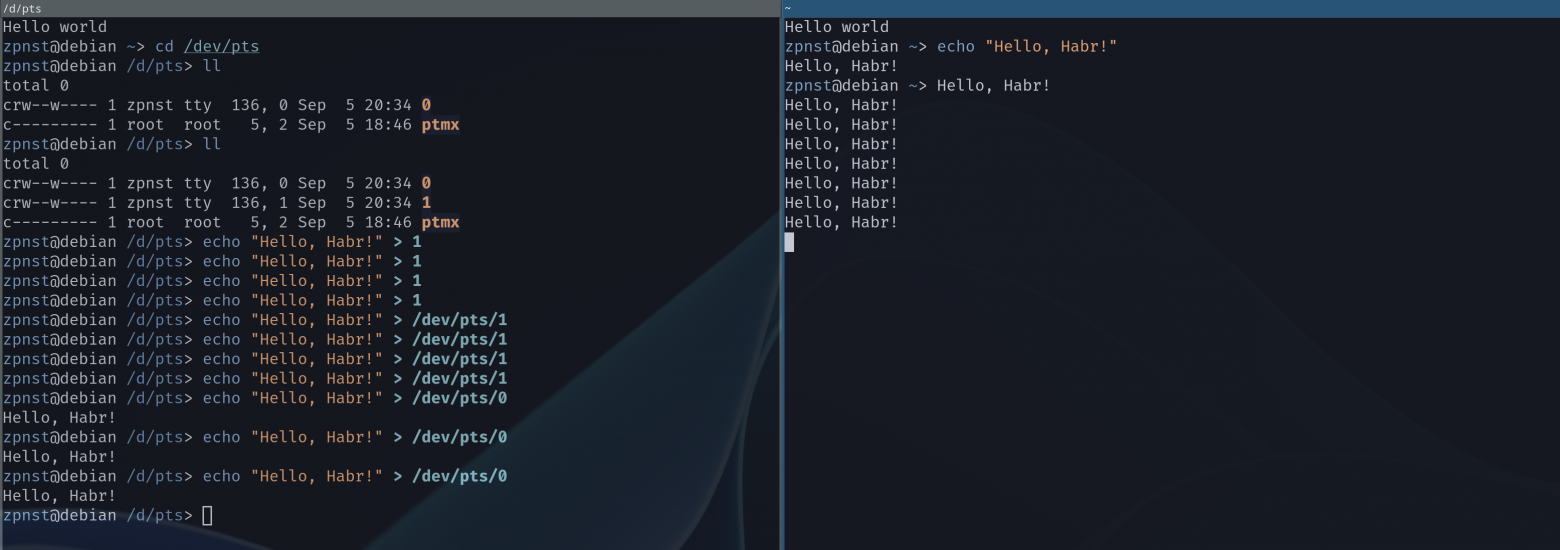
What have we done?
At first there was only one terminal to open on the left. The first output showed us that there is only one pseudo terminal with index
0, that is/dev/pts/0;Next, open the second terminal on the right and look at the contents of the folder again
/dev/pts, a second device appeared/dev/pts/1!;In the right terminal enter the command
echo "Hello, World!", it simply displays the line on the screen, callingwrite();But we can output a line from the left terminal to the right one, we have everything for this! Device responsible for the right terminal
/dev/pts/1and utilityecho. Next, we simply output from the left to the right several times, redirecting the output to the device that is responsible for the right terminal;And now we try to output to the left terminal through its own device, such a command is a little meaningless, since
echoin the left terminal and without redirecting with>would output to the left terminal, which is assigned to the device/dev/pts/0.
❯ Mouse and touchpad
Now let's look not at a logical object, such as a pseudo-terminal, but at a physical device - a mouse/touchpad. And in a very real sense, let’s touch on the concept “Everything is a file” with our own hands:
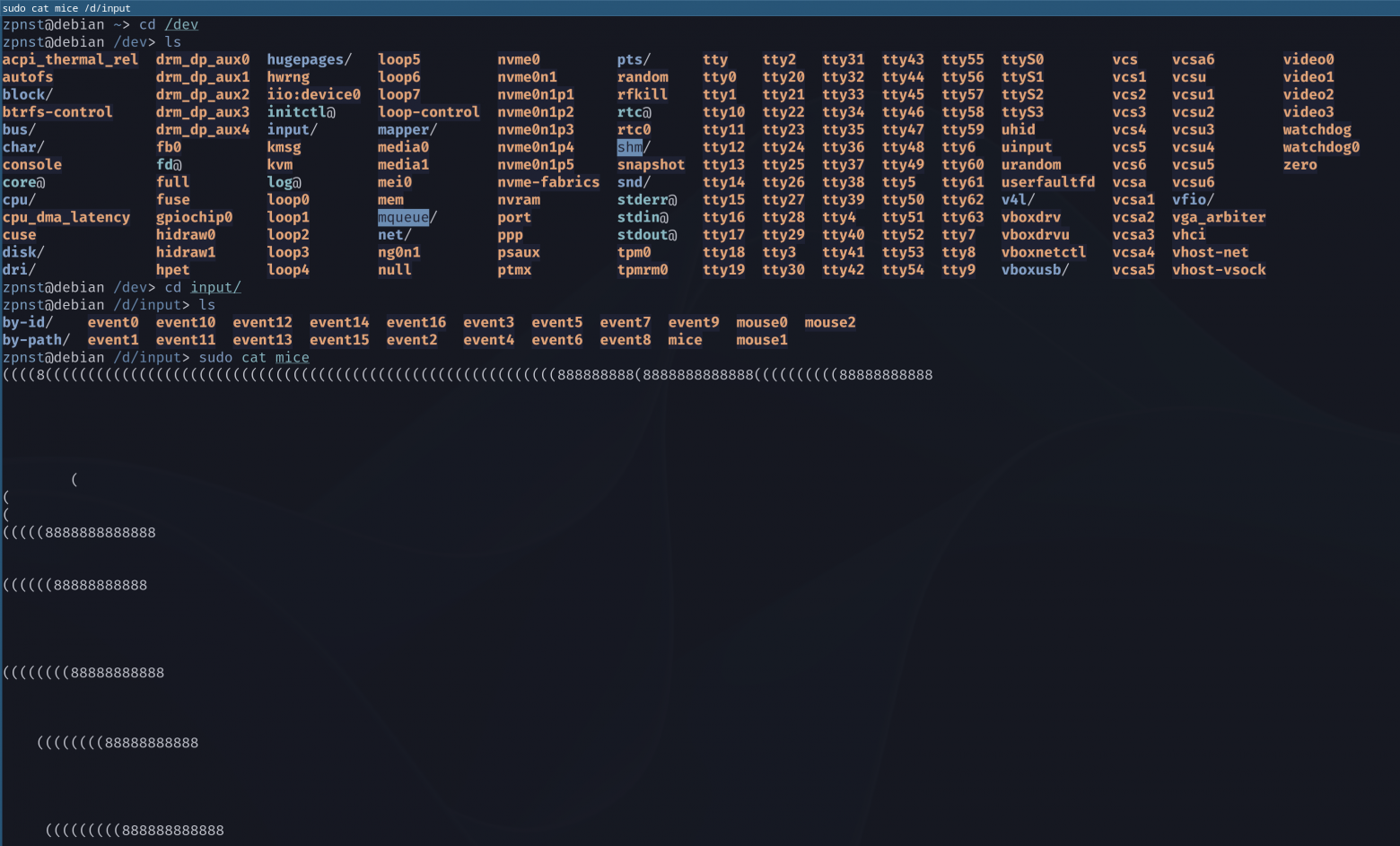
We displayed a list of all devices, then went to input devices and applied the utility cat to mouse file mice. Utility cat, applied to a regular file, simply outputs its contents to the terminal, that is, it calls read() to this file (c read() we already know each other).
But having applied cat we won't see anything to the mouse file... until we move the mouse! Try it, it's very cool :)
But what do we see? What are all these brackets and eights and a lot of empty space? These are simply mouse driver control codes that the terminal tries to interpret as ASCII characters, because the mouse driver (since the mouse is a file) implements the function read() in the structure file_operationd (we talked about it above). And since cat just calls read() to the file, then we do not observe any errors. We simply see what a program that can interpret data from a mouse would get. For example, some kind of graphical interface that needs to constantly draw a cursor on the computer screen when the position of the mouse on the table or finger on the touchpad changes.
By writing a simple script in Python, you can see those same bytes. Run the script and move the mouse:
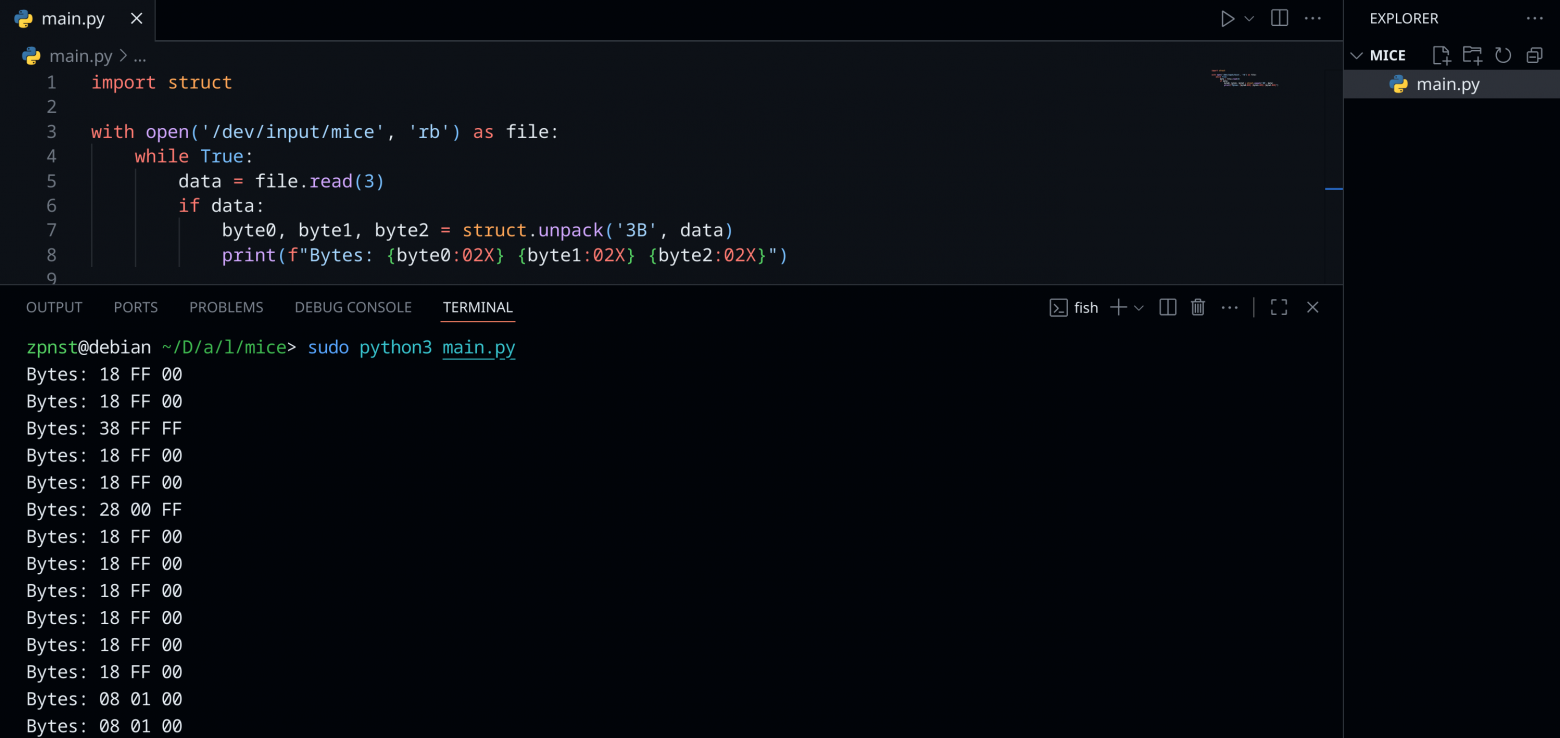
Why do we read three bytes? The first byte transmits the flags and the pressed button, the second byte transmits movement along the X axis (relative horizontal movement), the third byte transmits movement along the Y axis (relative movement vertically). On stackoverflow There is a question about this and a C code to view these bytes. For simplicity, I decided to write it in Python.
❯ Sockets: the Internet is a file :)
Let's write a simple TCP server in C:
Disclaimer: This code is truly terrible, it does not check function return values for errors and it does not follow any “best practices”, it is only for demonstration! Here's a one-time template :) You can find examples of a normal TCP server in C on the Internet at the first, and possibly at the second, link
This server simply listens for incoming connections, as soon as one is received, the server waits for the first message from this connection and exits:
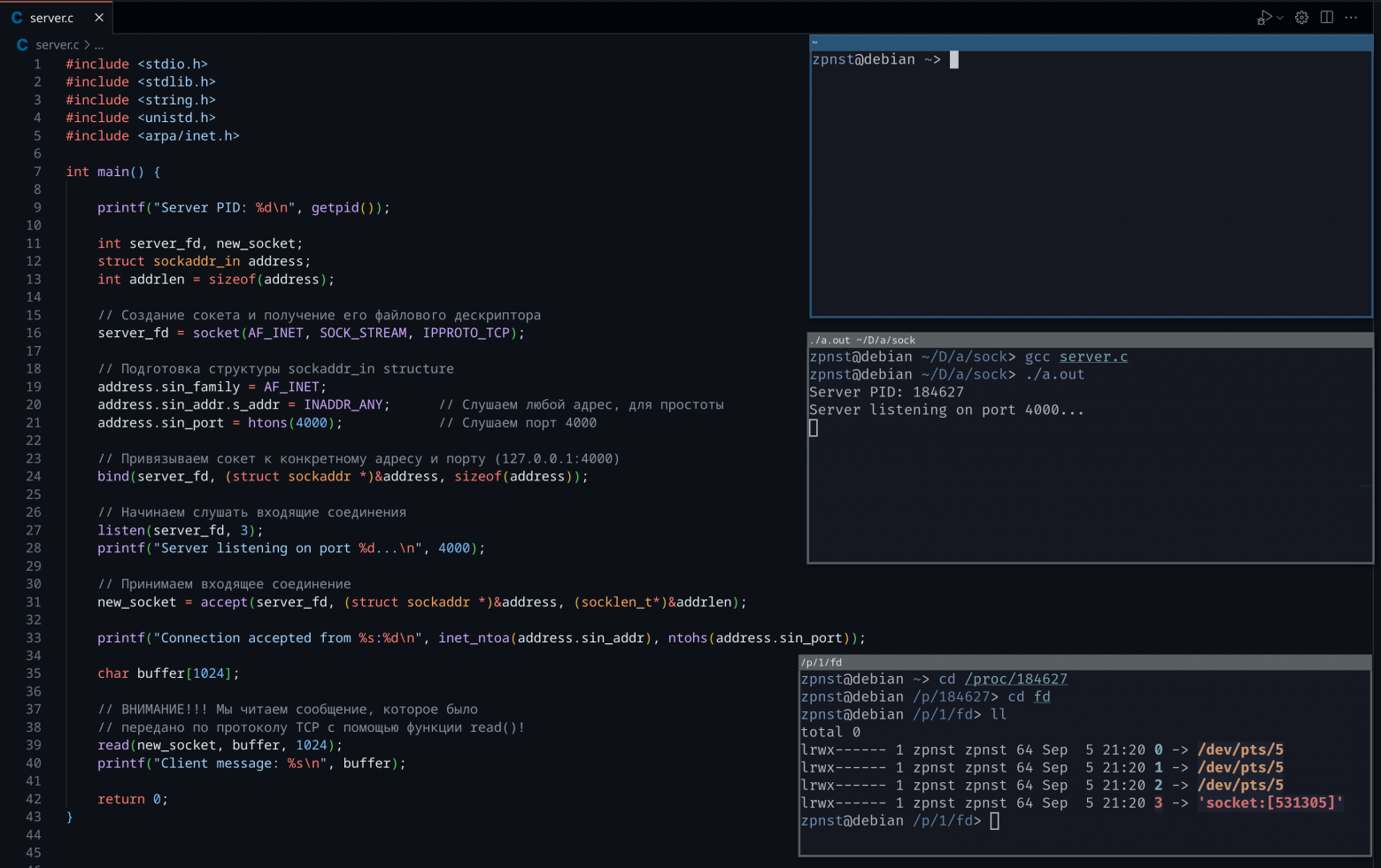
What happened here?
In the middle terminal, we started the server and it kindly reported to its PID, and also, the server process will be blocked until it receives an incoming connection. We achieved this using the listen() function and output information that the server is listening for connections to the terminal;
In the lower terminal, let's look at the list of file descriptors of the server; now, in addition to standard streams, there is a socket there! A socket is a kernel resource and is managed by the kernel; descriptor 3 stores a link to this resource. And the kernel turns this resource into a file!
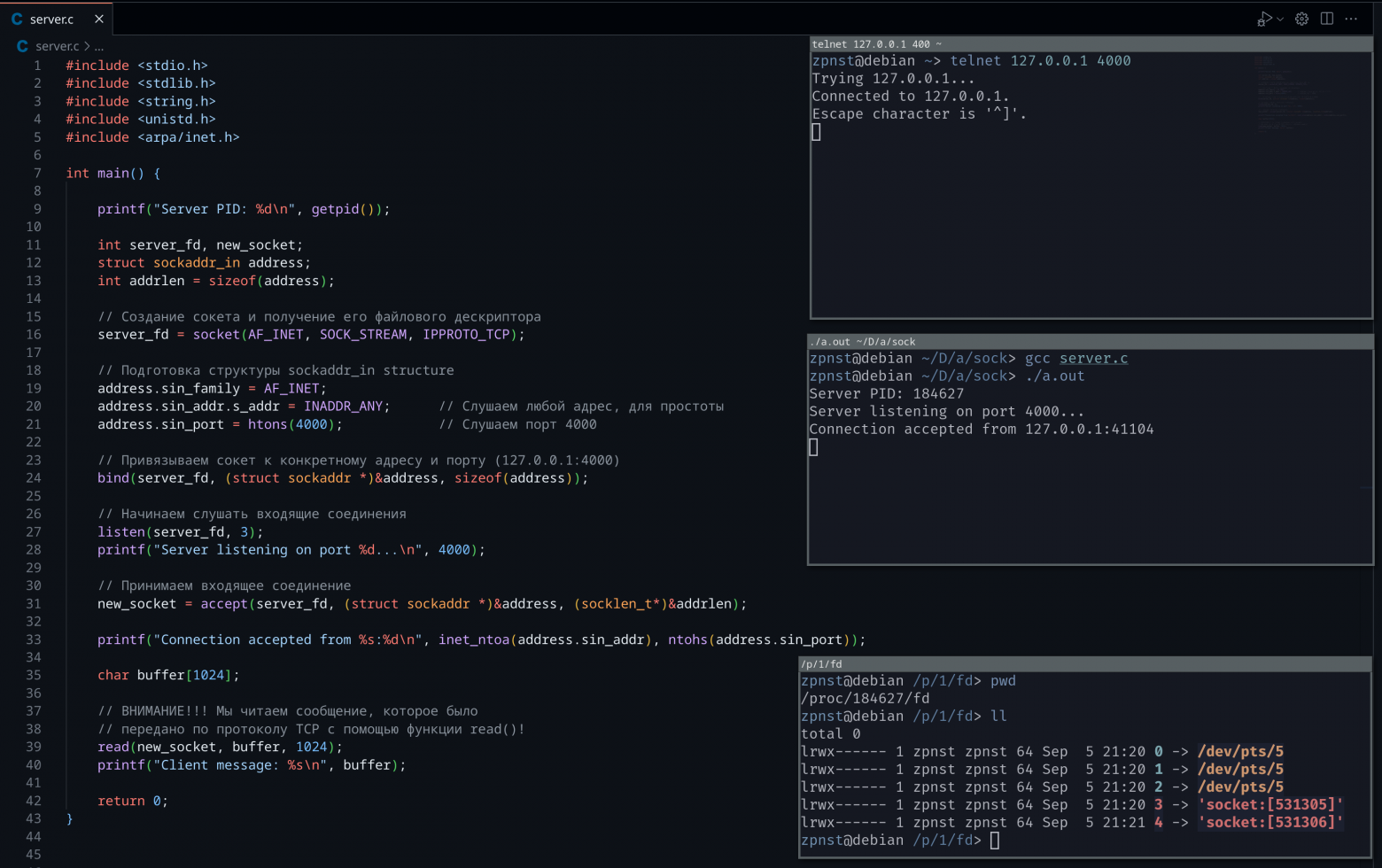
What happened here?
In the upper terminal using the utility
telnetconnect to the server at the local address and port 4000.telnetworks using the TCP protocol, which is what we need;Now we look at the lower terminal, a descriptor has appeared under the number
4, it personifies the communication channel/connection between the client and the server, through which they communicate. If the descriptor (socket) number3doorman, then the handle (socket) numbered4- waiter. I think the analogy is clear. In the context of the network:3- listening,4– receiving and transmitting.
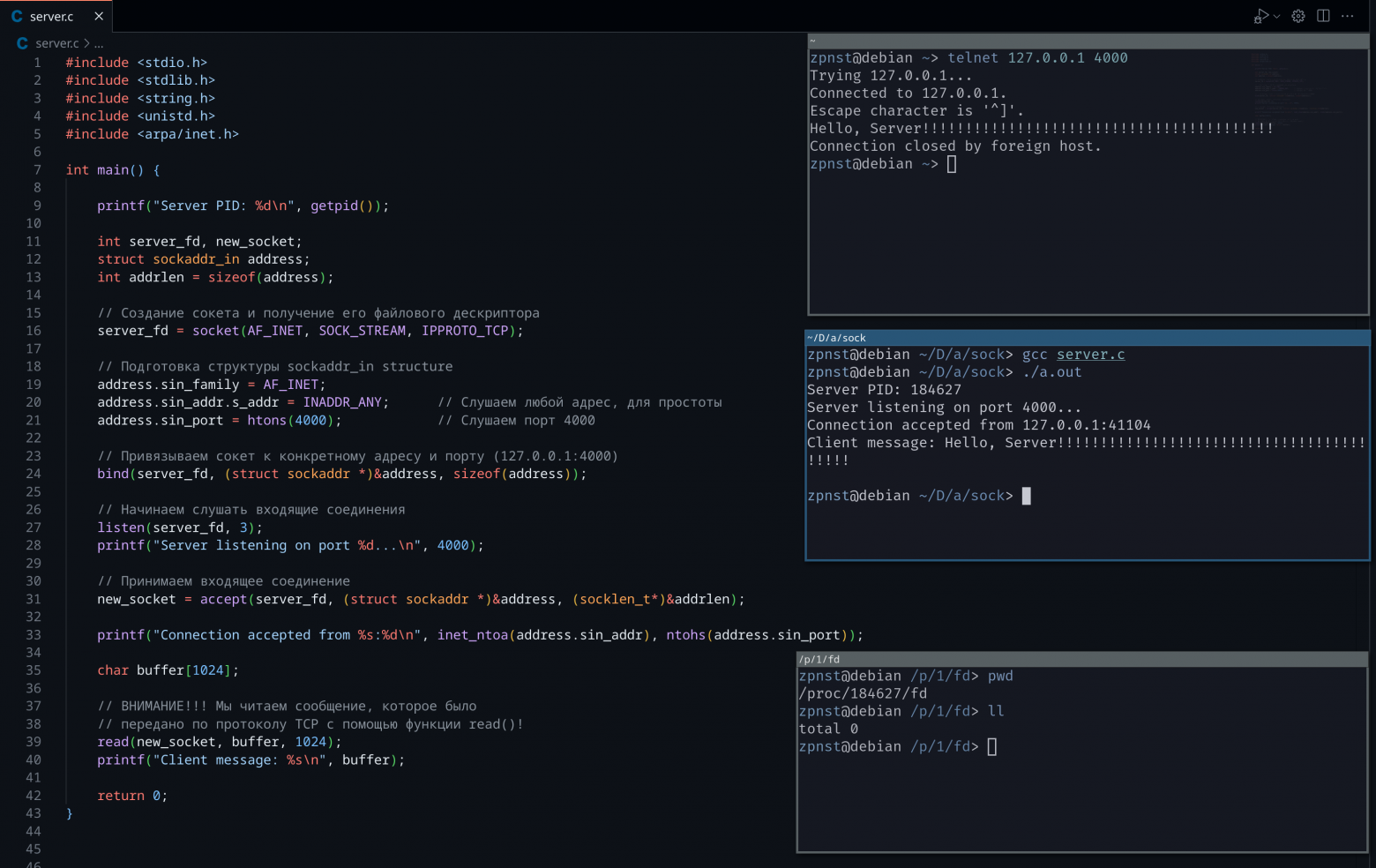
What happened here?
Finally sending the message
Hello, Serverwith 41st!in the upper terminal and we see that in the middle terminal of the server we successfully received it!;The server shut down after receiving the first message, as we intended;
Now in the lower terminal, when we try to display information about server descriptors, nothing comes out. Of course, because the process file in
/procexists only during the lifetime of the process, and the server process has already terminated.
That's all, now the Internet connection is also a file. The server reads messages from the client using the same function read(), and if he wanted to send something in response to the client, he would use the function write(), passing the socket descriptor as the first argument!
❯ Conclusions/Conclusion
I’m very glad if you made it this far, it means I’m writing for a reason. I hope you learned something new and were inspired by the “Everything is a File” concept in UNIX-like operating systems, and in particular Linux.
What did we cover in the article?
We understood what our hard drive consists of and how skillfully and incredibly complex it is designed, and also understood how the file system and information in general are stored on it;
We learned that modules can be connected to the Linux kernel, on the basis of which drivers are written that pretend to be files. Or more precisely, they encapsulate the logic of a physical device or logical resource and provide a standardized file interaction interface for them;
We looked at many examples of “unusual files” and realized the power of such simple, but so elegant and fundamental
read()/write().
Thank you and see you on é!
❯ Literature
:
Assembler: consider each byte of “Hello, World!” How programs actually work at the processor and OS level
YouTube:
How do SSDs work? How does your smartphone store data? Branch Education in Russian
How a Single Bit Inside Your Processor Shields Your Operating System's Integrity
The first kernel module in C and tools for looking at it • Live coding
News, product reviews and competitions from the Timeweb.Cloud team - in our Telegram channel ↩
Why This Matters In Practice
Beyond the original publication, Why is “everything is a file” in Linux? Or why UNIX's ingenious abstractions are so ingenious matters because teams need reusable decision patterns, not one-off anecdotes. ❯ Glossary Program – a text file that contains code in some programming language; Process – an abstraction of the operating system that allo...
Operational Takeaways
- Separate core principles from context-specific details before implementation.
- Define measurable success criteria before adopting the approach.
- Validate assumptions on a small scope, then scale based on evidence.
Quick Applicability Checklist
- Can this be reproduced with your current team and constraints?
- Do you have observable signals to confirm improvement?
- What trade-off (speed, cost, complexity, risk) are you accepting?
FAQ
What is this article about in one sentence?
This article explains the core idea in practical terms and focuses on what you can apply in real work.
Who is this article for?
It is written for engineers, technical leaders, and curious readers who want a clear, implementation-focused explanation.
What should I read next?
Use the related articles below to continue with closely connected topics and concrete examples.